
Anyone who has been living in a cave for the last 15 yearsor so may be forgiven for not knowing that video is now part of just abouteverything we use. It’s no longer limited to our television sets and moviescreens. We now enjoy it on anything with a screen, including our phones, andsometimes we don’t enjoy it so much in places like gas station pumps, elevatorwalls, and supermarket aisles.
Of course, we are also seeing it a lot more in eLearning as videocreation and editing have come down in price year after year. It also hasbecome the focus of many of the newer authoring tools, including those that areinstalled on desktops, those in the cloud, and those that make use of mobiledevices for student responses and input. Thinkzoom (powered by ej4) isno exception. It is a web-based tool, accessed through a branded subdomain. Ina recent meeting, I met with Mike Marjoram of United eLearning, who told me aboutThinkzoom and piqued my interest enough that I decided to give it a try.
For a typical user, Figure 1 is the menu seen when accessingthe website unitedelearning.thinkzoom.com.

Figure 1: A branded main menu
The Dashboard,the first item in Figure 1, can be customized in many ways. It can contain anyof the following items:
- Groups—Includethe course in the group(s) in which you belong
- RequiredCourses—Courses you must take
- FeaturedCourses—Courses you might find interesting
- Account—Edityour profile and access your exam scores, certificates, achievements, and more
- Help—How-tovideos and more
- Topics—Findthe content you need
- Favorites—Whichcourses you’ve liked
- Recommendations—Whichcourses other users have suggested you watch
- UniversalSearch Bar—Search field that lets you search across courses, topics, andgroups
- 4tify—Every4tify quiz (or quiz and video recap) that you haven’t yet completed
The Quad, thethird item in Figure 1, is your social-learning platform where you can see whatother learners are doing and collaborate. See Figure 2.
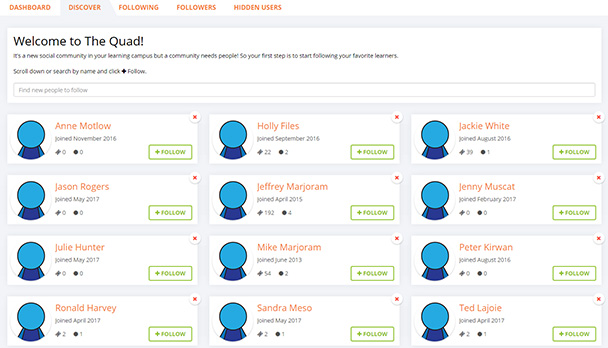
Figure 2: The Quad
Course Catalog,the second item in Figure 1, lets you search for and check out every topic andcourse. See Figure 3.
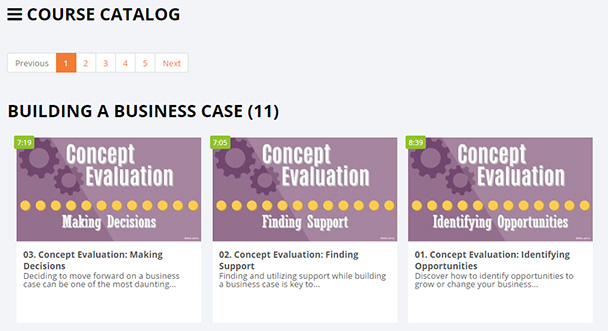
Figure 3: The Course Catalog
Messages, the fourthitem in Figure 1, is where you can view notifications and send messages toother users.
Creating a course
The first step in creating a course is simple. Upload ordrag-and-drop documents or videos. Alternatively, start recording your screen. SeeFigure 4.

Figure 4: Creating a course—Start
When you record your screen, you get a couple of niceoptions, including whether you want to record yourself on the webcam, in whichcase you’ll see a translucent video of yourself while you’re recording. SeeFigure 5.
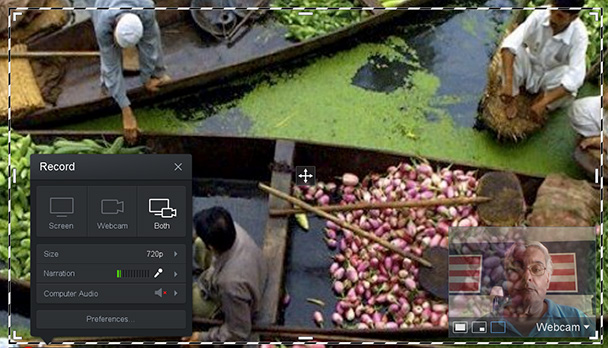
Figure 5: Choosing a webcam and more
You can upload these types of files:
- Video—MOV,MP4, WMV, AVI, MPG, MPEG
- Other—PDF,DOV, DOCX, PPT, PPTX, XLS, XLSX, TXT
Mix and match any of the above to form a course, thoughclearly video is expected to be the central focus. Note that your screenrecording, of course, can be one or more of your videos.
You can access any files you may have uploaded in the pastand, of course, upload new files as well to include in a new course you’recreating. Prioritize the content in the order you wish so that learners see itin a logical way.
Quizzing
You can include four types of quiz questions: single-answerand multiple-answer multiple-choice questions, true-false questions,fill-in-the-blank questions, and mix-and-match questions. You can upload imagesand videos to include in each. Mix-and-match can include text and/or imageitems to match. See Figure 6.

Figure 6: Quiz options
When you edit a quiz question, you get a straightforward setof options, including whether the question is mandatory or not. See Figure 7.
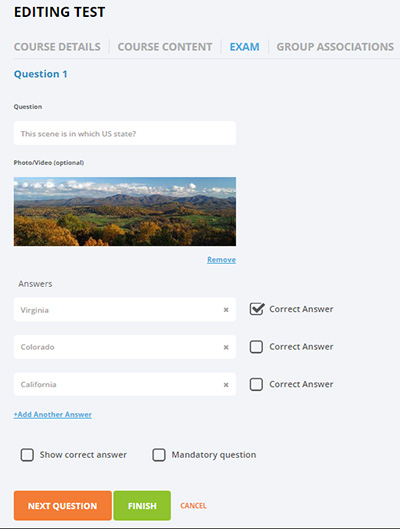
Figure 7: Editing a quiz question
When your course is ready, you can associate your coursewith various groups and also restrict your course to be available to only thosegroups in your organization. See Figure 8.
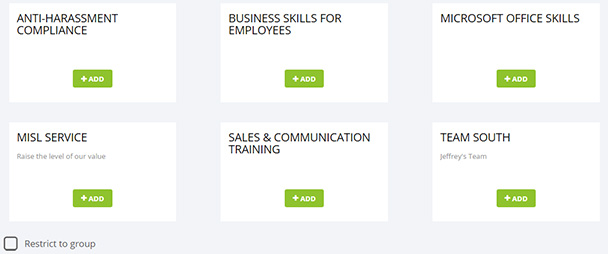
Figure 8: Associating your course with groups in yourorganization
To find out more about Thinkzoom (powered byej4), contact Michael Marjoram at [email protected].