
One thing that I have learned is that if you are using Storyline and want to build eLearning games or interactions, you need to use variables and conditionswithin Storyline. But most developers starting out with Storyline don’t evenknow what a variable or a condition is.
What is a variable?
Simply asking, “What exactly is a variable?” willpoint out things you probably have forgotten.
For me, asking this question led to doing a littleGoogle search. Since I wanted to narrow my definition of variables to justprogramming, I tailored the question to read, “What is a variable withinprogramming?”
I quickly found a wiki article with a definition that offers tremendous insight. Thearticle says, “In computer programming, a variable isa storage location and an associated symbolic name.” In otherwords, a variable stores information that we can access and change at any pointin a game or a course. We give each variable a name.
This fits perfectly for working withvariables in Storylinegames. For instance, we will haveinformation that we need to keep track of in a game, whether it is a name, ascore, or even just a true/false setting. We might also need to store data totest against (to add to or take away from) at a later point, such as a variableStoryline can check to make sure the learner visits or does certain thingsbefore Storyline allows him or her to continue.
Three types of variables inStoryline
With the understanding of what a variable is,what types of variables can we use? There are three variable types in Storyline:true/false, numbers, and text. I will explain the benefits of each later butfirst let me show you how to get to your variables.
To access your Storyline variables, click onthe “X” icon in the triggers section. It is on the far rightside of the screen on the same bar where you add and move triggers. If you hoverover it you will see it says “variables” (Figure 1).

Figure 1: Click the “X” icon to get to your variables
When you click on this button you will seeall the variables for the current project that you are in (Figure 2). If thisis the first time you have ever seen this screen then you should probably just keepit blank. If you have variables, this is where you can see the variables foryour entire project.
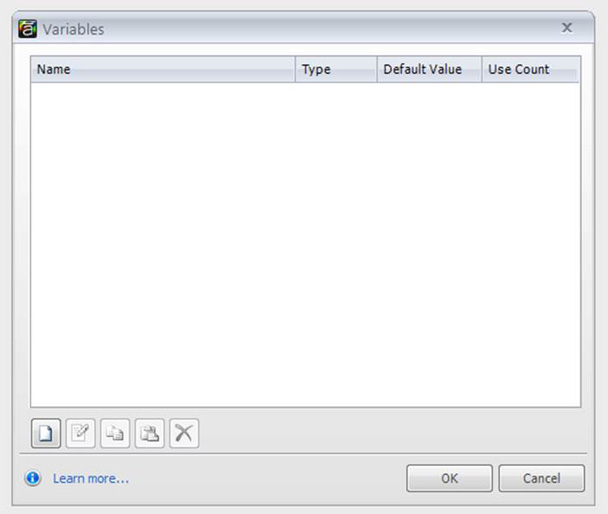 Figure 2: This is the screen where you will see thevariables for your current project
You can add new variables by clicking on thepage icon on the bottom left that looks like a page with the top right cornerfolded over (Figure 3).
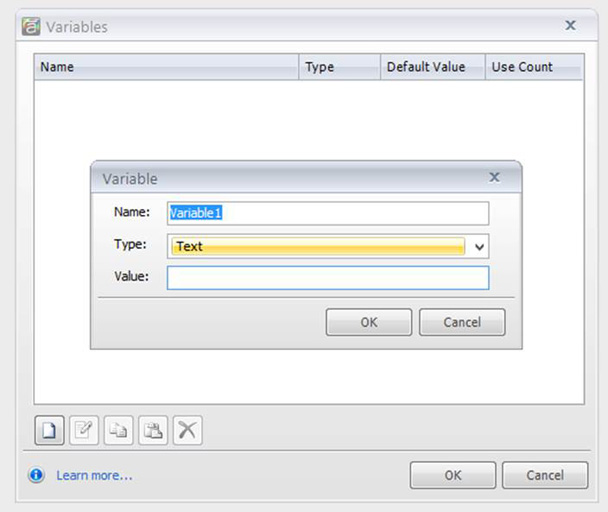 Figure 3: To add a variable, click the “dog-eared page” icon in the lower left ofthis screen
What I really love about Storyline is that itmakes working with variables a whole lot easier than trying to memorize all thecode as you must do with ActionScript or JavaScript. Storyline just presentsyou with simple drop-down boxes. You see in Figure 3 a place in the variable dialogbox to give this variable a name, which is the “symbolic name” the wikidefinition was talking about. There can be no spaces within this name, and Irecommend you name it something you will remember when you are programming yourgame. Then you choose what type of variable you want it to be (Figure 4).
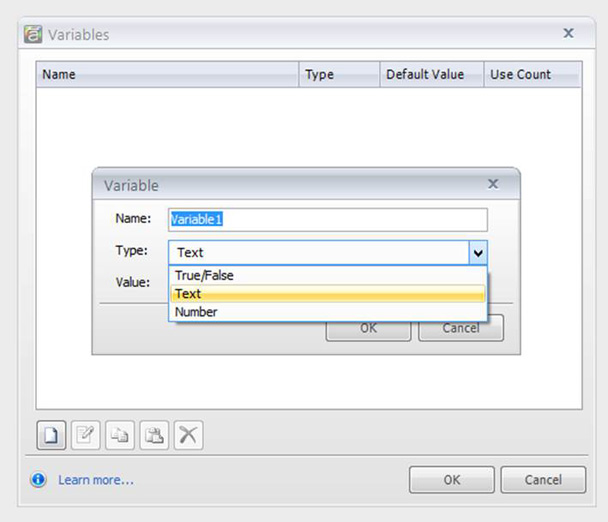 Figure 4: Name the variable and select the variabletype at the same time
As I mentioned before, Storyline has threedifferent types of variables to choose from. You can use true/false, numbers,or text. Select the type you want, and then enter the default value of thevariable. This is how you initially store a value for the variable. Forinstance, if you are keeping a score the default value will probably be 0because that is what your learners start out with when they first come to thegame. If you want to store the learner’s name then you probably could justleave it blank: you do not know what the learner’s name will be so there isnothing to store yet. Just set the variable up by name and type, and leave thevalue blank.
What is the difference between these variabletypes? Let’s explore that now.
True/false variables
The true/false variable can be either (youguessed it) true or false. I like to think of this as off or on, or a visitedor not-visited variable. It is useful for “on/off” settings. If you want togive the learner the ability to play audio, when the variable is set to falsethe audio won’t play. You still have to add the condition to the trigger butfirst you have to set the variable. It can also be used for visited or answeredquestions. If you have the variable default set to false, then when the learnerclicks on an item you change the variable to true and then the learner cancontinue. And of course, the variable has to be created before you can use itin your triggers and conditions.
Number variables
The number variable will just store a number.No text whatsoever. So I find this most useful if you want to keep track of howmany times someone attempts an interaction, or what his or her score is in agame. We use this in all of our Storylinegames as you can see in ourexamples. In our game show we have a score, and whenever the learner answers aquestion Storyline will add the points for the chosen category to the scorevariable.
Text variables
Text will store any string of text: names,phrases, or anything else. I find this useful if you want to personalize yourgames or courses. You can have a text-entry field where the learners will typein their names. Then you can display the learner’s name by typing within %signs the name of the variable. So if I create a variable called ”name” andat some point I want to display the learner’s name on the screen, all I do onmy page text is enter “Hello %name%, welcome to thecourse” in the course script. When the learner comes to that page, he will see,“Hello Jeff, welcome to the course.” When you use a name it grabs the learner’sattention.
If you have a word or a phrase that maychange, place it in a variable. For example, years ago I worked in a callcenter where, for trouble shooting, we used a database named “Doris.” Well, whatif the name of the database was changed to “Eunice.” If someone at that callcenter had created a trouble-shooting course with the name “Doris” plastered onevery page, it would be a huge pain to go in and change the name to “Eunice” inall those places. You could create a text variable with “Doris” as its defaultvalue. You could even call the variable “Doris.” In thatcase, when the instructional designer created the course, he or she would justwrap “Doris” within percentage signs: %Doris%. Then Storyline would findeverything it needed in %Doris%. If I need to change the name later, I just goback into the variables and change the default value to something else andStoryline will automatically update every page with the new name.
With your variables created, you can use triggers andconditions to make your content awesome!