I have a policy: Be honest. My policy gets me in trouble alot.
I was working with a new instructor who was independentlycreating his first online course. He was acting as both subject matter expertand course developer.
“You want my honest opinion?”I asked for the second time.
“Yes. Feel free to crush my hopes and dreams.”
I did.
Since having this discussion, I’ve delved further intoscreencasts. In developer training, screencasts are the meat of our courses. Iwatched many—some that we produced and some produced by others. I quicklyrealized that there were eight common problems found in many, many of thescreencasts that I watched.
So here we go: Here are eight reasons I hate your screencasts,and some ideas for fixing them.
1. Your instructor lives in a box

Figure 1: This instructor is teaching from the default box. Asidefrom seeing her wallpaper, what does this add to the screencast?
I know. I know. This is what the recording softwaredoes, right? The instructor in Figure 1 has to live in a little box in thecorner of the screen. Down in the corner, completely separate from the contentin a tiny box, in a completely different environment. The problem is that itlooks like the instructor: A) taught the class while having a passport phototaken; B) is doing sign language interpretation; or C) lives in a most-wantedposter.
You have to ask yourself: Does seeing the instructor addanything? If not, take that tiny box out entirely. The screencast with voice-overcan stand on its own. If seeing the instructor does add to the screencast, trysomething like Figure 2.

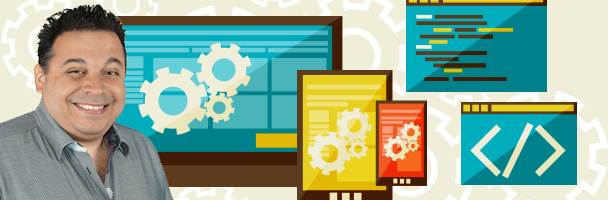
Figure 2: This instructor is now integrated with the screencast,able to point out various aspects of the interface. He’s handsome, too.
With the instructor integrated into the content, you can doseveral interesting things. For example, the instructor’s hand gestures canpoint to different on-screen items (like the weather forecaster on TV). You canstrategically position the instructor on screen to explain different itemsrelated to the content. You can make the instructor very large or very small. Youcan be creative and actually have the instructor be part of the lesson—if youbreak the instructor out of the box.
2. Your screencast is too long
Unless you’re getting paid by the minute, your screencastprobably needs to be shorter. In fact, I’ve never heard anyone say, “Wow—thatscreencast was great, but I wish it were longer!” As certain as I am that youhave many wonderful things to teach, people learn best in short bursts. Dr.Philip Guo, a computer science professor, found in researchhe was completing for edX that, on average, people watched three minutes of a12-minute video. Dr. Guo’s advice is the same as mine: Work in small chunks. Ifyour video screencast is eight minutes long, do you think it may need to be twoscreencasts?
Keep in mind how often the “formal” training you might producecrosses over into the performance support world. When going back to review aspecific concept, learners shouldn’t have to scrub through a bunch of video tofind what they are looking for.
3. You’re boring
Nobody likes boring. Even if the information relayed in thescreencast is boring, the instructor doesn’t have to be. Sometimes boring isjust a matter of tone of voice and inflection. For some reason, onlineinstructors think because their topic is serious—or even just work-related—thatthey have to be formal and speak in a monotone. This type of deliveryimmediately turns people off and makes them less likely to pay attention toyour course content.
Even if a topic is boring, an energized delivery can help ensurethat learners pay attention. Be aware of your pitch, tone, volume, and rate.Varying these factors in vocal delivery will lead to a less boring, moreenergetic result.
Pitch refers to how high or low the speaker’s voice is. Speechwithout pitch variance sounds monotonous.
Tone refers to emotion. Does the speaker sound energetic, orbored and flat? What are the vocals communicating aside from the wordsthemselves? Often, a tone that sounds slightly exaggerated to the speaker, whenincluded in online learning, will sound “normal” to the learner. Exaggeratingtone a bit (don’t overdo it!) may take you out of your vocal comfort zone, butit will lead to a much less monotonous experience for the listener.
Minor variations in rate (the speed at which you talk) andvolume will also help speakers be less boring. Be careful with volume, as youdon’t want to be so loud as to distort the vocals.
4. There’s no context
Many screencasts that I’ve seen seem to start in the middle. Becausethere’s a screen, the natural thing to do is to start moving the mouse andclicking. However, the best thing you can do is set a context for what iscoming next. Context can be communicated in a sentence or two:
“Now you’ve completed the quiz interaction in your course. Butlet’s say you want to edit or change the answers available. I’m going to showyou how to do that now.”
I actually like to set context both visually and with voice-over.We always use a bumper slide at the beginning of the screencast that setscontext in addition to the voice-over (Figure 3). We keep this slide on screenfor about five seconds as the instructor is setting context. The idea is simplyto orient the viewer to what’s about to happen in the lesson.

Figure 3: This slide helps set context for the content about tocome
Keep in mind that while you may design a course for a learnerto consume sequentially, often times the course may be used as a performancesupport instrument—meaning the learner won’t have the benefit of the previouslesson for context.
5. It’s one continuous shot
Broadcast television changes the shot about once every fiveseconds. A 22-minute network sitcom may be composed of 300 separate shots ormore. They do this because they know that varying camera angles, using B-roll video, and usingestablishing shots all increase engagement and help expose the narrative.
Online learning, however, seems to have a standard of a singleshot per screencast sequence. It might be useful for producers to think ofscreencasts more like a television show. While the five-seconds-per-shotstandard is probably not achievable for most online learning, we can still varyscreencasts to include:
- Stillslides. That doesn’t mean use the PowerPoint defaults, but a slide thatillustrates the point being made by the speaker (Figure 4).
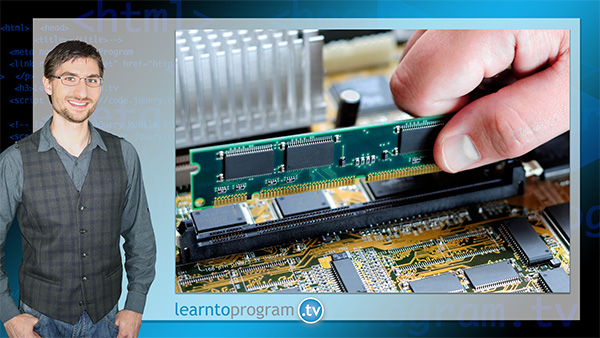
Figure 4: An example of a still slide that can be part of ascreencast. The voice-over is discussing computer memory, and it shows theinstructor.
- Whiteboard.Using whiteboard software such as VideoScribe, you can create simulated whiteboardvideo. Good for a change of pace in a screencast.
- Instructorhead shot. If the instructor is talking, why not show him or her on screen?You can edit short videos of the instructor speaking into your screencasts. Iam a big fan of having the instructor appear on screen to help establish thatall-important teacher-student relationship.
- Instructorin screencast. Show the instructor in front of the screencast. This is agreat opportunity to create engagement as the instructor is integrated into thescreencast itself.
There are dozens of additional possibilities here, includingequipment shots, animations, and more. Just remember: A screencast shouldn’t bea continuous, unadorned, unchanging shot of the screen.
6. Your mouse is in perpetual motion
This one is easy: If there is no reason for the mouse to bemoving, don’t move it. It’s distracting for the learner to follow your mousepointer around the screen when there is no reason for it to be moving in thefirst place. If you have a recording in which an instructor continuously movesthe mouse around the screen, consider editing the screencast so that the mouseappears still.
7. Uhhh… Ummm… Ahhh…
You’ve probably been hearing about filler words since yourhigh school speech class. In professional-quality online learning, it is not OK to have filler words in the finalproduction. Re-record, or edit them out. Filler words can make your speakersound lacking in confidence. They are also simply annoying for the listener.
This is an area where it’s so easy to raise the bar on thequality of online learning. In many organizations, the use of fillers isconsidered acceptable—I challenge you to up the level of quality andprofessionalism by eliminating these fillers.
8. I don’t know who you are anymore!
I’ve never been a fan of using professional voice-overs in onlinelearning. Worse yet, I’ve seen a couple of online learning productions with amechanized computer voice. Online learning sounds most authentic when thesubject matter expert, instructor, or even the course producer is the “voice”of the course.
One of the things that is lost when learning goes online isthe relationship between student and instructor. That’s why we take everyopportunity to show an on-screen instructor through headshots, photographs, andvoice. You’re missing an opportunity to engage students if you cast a voiceactor to complete the voice-over in your courses.
If you include screencasts in your courses,integrating a few of these suggestions will allow you to improve the quality ofyour screencasts and make them more engaging.
And, as a bonus, I won’t hate your screencast anymore.
References
Guo,Philip. “Optimal Video Length forStudent Engagement.” edX Blog. 13 November 2013.https://blog.edx.org/optimal-video-length-student-engagement