Last month’s column looked at using the virtual classroom whiteboard as a toolfor interactivity rather than just a screen for pushing slides. Another often-underutilizedtool is participant chat, available in most virtual classroom products. While chatis often viewed as, literally, a place to just chat or offer commentary, it’s actuallya great tool for conducting activities and structured discussions.
Working with large groups?
I have no problems with a busy chat area; I now think of my2003 introduction to webinar chat as an introduction to what Twitter would looklike just a few years later. But if you find it overwhelming for yourself oryour participants, or otherwise just want to manage groups for a chat (orwhiteboarding) activity, you can do it by selecting different people throughoutthe session. Ask them to respond based on criteria such as:
- Everyone wearing glasses.
- Everyone with blond hair.
- Want fewer? Everyone with red hair.
- Everyone born January through March.
- Everyone with brown eyes.
- Everyone wearing blue.
- Fewer: Everyone wearing orange.
- Dog owners and/or cat owners.
- Fewer: Ferret or parrot owners. No answer? Tryhamsters, guinea pigs, or fish. Or no pets.
- Everyone wearing socks.
- Fewer: Everyone who is barefoot.
- Everyone whose name starts with a vowel.
- About 10 percent of the group: Everyone who’sleft-handed.
- For the first three minutes, people with lastnames that start with A through M; for the next three, people with last namesthat start with N through Z.
Be sure that everyone has a chance to participate at somepoint in the session. Not everyone has a pet. Some don’t have hair. Some don’thave eyes or feet. But everyone has a birthday.
Brainstorming
Figure 1 is from a train-the-trainer class. The facilitatordisplayed this penny image and asked participants to write their birth years onit. The virtual classroom tools allow this to be done anonymously, as you can see.Participants were asked to discuss reasons for anonymity in some classactivities, a feature unique to the webinar environment.
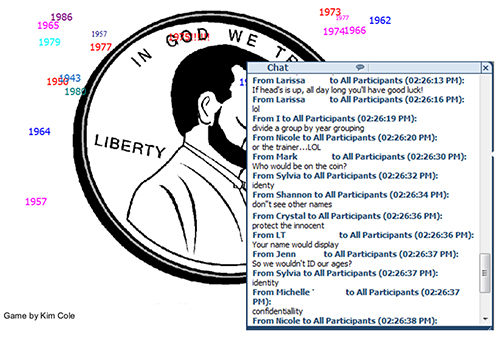
Figure 1: Brainstorming in participant chat
Role play
This can be especially useful for those whose work involves usingchat, such as some customer service reps. In this example, Odessa wasinstructed to be the angry caller with a broad, sweeping complaint. Dave wasthe new customer service rep tasked with identifying the problem.
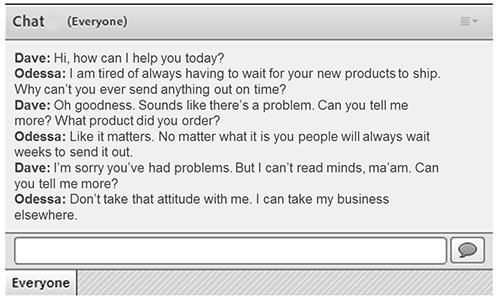
Figure 2: Role play
Dave’s made a misstep with the “I can’t read minds” comment,and the conversation is not becoming any more productive. At this point thefacilitator might stop the chat and ask Dave to stop and reflect, coach him on ideasfor improving the conversation, or open up a larger group discussion.
Sentence stems
Display a partial statement on a slide, and ask participantsto finish it in chat.
Sentence stems:
- One thing I know about ________________________
- The best boss I ever had always__________________________
- The biggest challenge with setting up the workflow for that is _____________________________
Round-robin
Ask participants to take turns adding ideas to a commongoal, elaborating on a process, or building an idea. If you need to, you canjust let them go in the order in which they appear in the participant list(that’s usually alphabetical) or assign numbers.
In the example in Figure 3, a group of workers who deal witheligibility for Medicaid benefits used a round-robin chat to construct a samplefamily that would be the basis for the case they would subsequently workthrough.
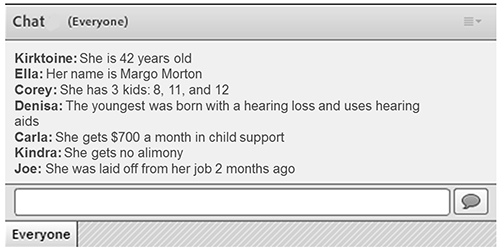
Figure3: Group builds a sample family to use as a case for their class activities
Stimulate prior knowledge
Ask:
- What are some key tips for making a good firstimpression?
- What were some traits of the best boss you everhad?
- Who remembers the last software implementation?What are some lessons we learned from that?
- What do you know about immunotherapy?
Private or paired chat
Virtual classroom chat tools usually allow two participantsto message each other. This is usually private and can’t be seen by otherparticipants or the facilitator. (NOTE: Be sure to check the tool you are usingto confirm that the chat is indeed private. If not, be sure to tell everyonethat so they’ll know their comments are visible to others.) Use this capabilityto have people work in pairs.
Here’s an example of a private chat from a class for newsupervisors. The facilitator has set up pairs of participants. Figure 4 showsJamie starting a private chat with Anna. Other participants cannot see thisconversation. Pairs are given five minutes to talk about their challenges with handlingdifficult discussions with employees and to develop one suggestion forimproving (Figure 5). At the end of the activity, each pair will close theprivate chat and share the suggestion with the rest of the class.
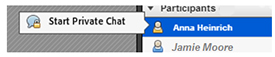
Figure 4: Participants can privately message each other
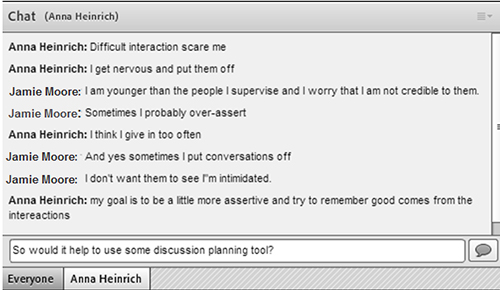
Figure 5: Paired chat from class for new supervisors