This month we’re going to create a complete mobile app. Insteadof creating a native app that works only on Android or iOS we’re going tocreate an HTML5-based app that works across multiple platforms. Since media isso critical in eLearning (and I thought it would be fun) I decided to create anMP3 player application. Figure 1 shows the user interface (UI). As you getready you might want to grab a couple of your favorite MP3’s as you’ll likelybe hearing them over and over again as you complete this tutorial.

Figure 1: MP3-player mobile application user interface developed inHTML, CSS, JavaScript, and jQuery Mobile
This application is going to be developed using fourtechnologies. They are:
- HTML: HTML markup is used to build the scaffoldingof the application and the user interface.
- JavaScript: Interactivity is built within theapplication using the JavaScript programming language. The essential logic iscoded in JavaScript.
- jQuery: This JavaScript framework is used tostyle the elements that appear within the user interface.
- PhoneGap: Adobe’s free PhoneGap library is usedto “wrap” the application and make it work the same as native apps across thespectrum of devices.
Let’s start by creating an application template with PhoneGapand modifying it for our own use. Please note that you will also need a texteditor to complete this tutorial. I use Brackets, which is also produced by Adobeand available at www.brackets.io.
Gettingready: creating the PhoneGap application
In this initial section of the tutorial we’ll create aPhoneGap application and modify the template provided for our own use.
(EDITOR’S NOTE:Because of the extensive code listings in this article, we recommend you viewit on a desktop display or tablet, rather than on a smartphone. If you mustview on a smartphone, we recommend viewing the article in landscape orientationrather than portrait.)
- Visit www.PhoneGap.com and click the “Install”button on the upper right hand corner of the interface (Figure 2).
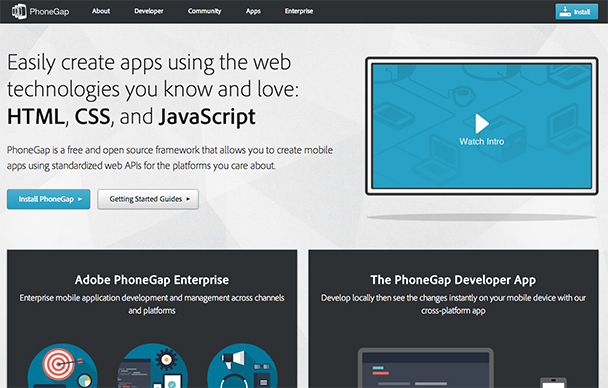
Figure2: The PhoneGap website. The install button appears on the upper right. Youmay wish to view the helpful intro video provided on the page. - Theinstallation process is easy. As the install page instructs, make sure you haveNodeJS installed. (If not go to nodejs.organd click the big green install button.) Next open your command line and issuethe following command:
sudo npm install -g phonegap
On a Mac the command line is accessed through the “terminal” utility. Ona PC it can be accessed through the start menu.
The install process can take several minutes and you must have an active Internetconnection to complete it.
- With PhoneGap installed, we’ll now create the PhoneGap templateapp. When you create a new PhoneGap application, a template app is installed byPhoneGap. This template is essentially a placeholder and most of it can beremoved. To create the PhoneGap app, make sure your command line is pointed atthe location where you want to save the app. I used the desktop (see Figure 3).(You can use the cd command on thecommand line to change directories on Mac and PC). Issue the following commandto create the PhoneGap template app:
phonegap create musicPlayer
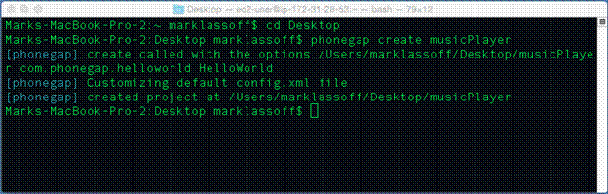
Figure3: Command line after create template application Thecommand you issued created a folder called musicPlayer. Open that folder andthen the www folder inside it. Insidethat folder delete everything except config.xml and index.html. The files andfolders we’re deleting are those we don’t need for the template application.
Open index.html in your text editor. There arereferences to the template application in the code that we don’t need. Edityour code so it appears as below:
<!DOCTYPE html><html> <head> <meta charset="utf-8" /> <meta name="format-detection" content="telephone=no" /> <meta name="msapplication-tap-highlight" content="no" /> <!-- WARNING: for iOS 7, remove the width=device-width and height=device-height attributes. See https://issues.apache.org/jira/browse/CB-4323 --> <meta name="viewport" content="user-scalable=no, initial-scale=1, maximum-scale=1, minimum-scale=1, width=device-width, height=device-height, target-densitydpi=device-dpi" /> <title>Hello World</title> <script type="text/javascript" src="cordova.js"></script> </head> <body> </body></html>
- The basic template above can be used for anyapplication. Let’s add a little HTML and CSS to create a container for our UI. Ilike using a container because it makes layout easier. We’re going to be addingjust a few lines of code. Inside the body tag add the following:
<div id="container"></div> <!-- container -->
- Next we’ll add the CSS to format the container. We’lladd some spacing around the margins of the screen to make everything appearcleaner. Add this code right before the closing head tag. (See Figure 4 toverify that everything you’ve entered so far is correct.)
<style>#container { margin: 6px; }</style>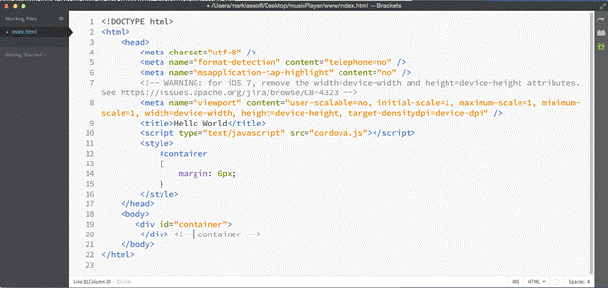
Figure 4: Code so far in the Brackets editor
Creating the userinterface
We’re going to use jQuery Mobile to style our user interface(UI). We’re going to add the code to connect to the jQuery Mobile library andthe HTML to display the user interface. You’ll notice the HTML embedsattributes designed to style the components with the jQuery library.
- Right after the title tag add the following three linesof code. HINT: Visit https://jquerymobile.com/download/and you can copy and paste the code from there.
<link rel="stylesheet" href="https://code.jquery.com/mobile/1.4.5/jquery.mobile-1.4.5.min.css" /> <script src="https://code.jquery.com/jquery-1.11.1.min.js"></script> <script src="https://code.jquery.com/mobile/1.4.5/jquery.mobile-1.4.5.min.js"></script>
- The code above connects to the necessary jQuery scriptsand CSS via a fast content-delivery network. Now we’ll use jQuery and HTML tocreate our user interface. You’ll insert this code inside the container createdearlier in the tutorial.
<audio id="player"/> <source src="assets/sunshine.mp3" /> <source src="assets/sunshine.ogg" /> </audio> <button id="btnPlay">Play</button> <button id="btnPause">Pause</button> <button id="btnStop">Stop</button> <label for="rngVolume">Volume</label> <input type="range" id="rngVolume" min="0" max="1" step=".01" value='.5' data-highlight="true" onchange="changeVolume()"/> <ul data-role="listview" data-inset="true"> <li data-role="list-divider">Songs</li> <li><a href="#" onclick="changeSong('sunshine')">Sunshine</a></li> <li><a href="#" onclick="changeSong('iSee')">I See</a></li> <li><a href="#" onclick="changeSong('finalRewind')">The Final Rewind</a></li> <li><a href="#" onclick="changeSong('audioBeast')">Audio Beast</a></li> <li><a href="#" onclick="changeSong('meaning')">Meaning</a></li> </ul> <div data-role="footer"> <output id="timeOut">Elapsed Time:</output> </div> Thisis a good point to view our work so far in a web browser. Load the index.html from the www folder into theweb browser. Your UI should appear like Figure 5:
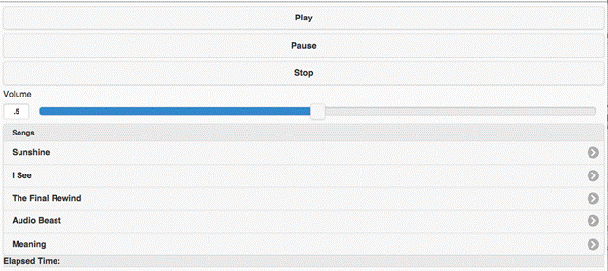
Figure5: Testing the UI in the browserIfyour UI doesn’t appear as in Figure 5, check your code and insure it’s correct.There is a complete code listing at the end of this tutorial. If you’re usingGoogle’s Chrome browser you can view the UI as it might appear in variousmobile devices. Open Chrome’s Developer tools by clicking View → Developer →Developer Tools from the drop-down menus (see Figures 6 and 7).

Figure6: Chrome Developer Tools. Choose Console from the menu at the top and Emulation from the tabs below the log.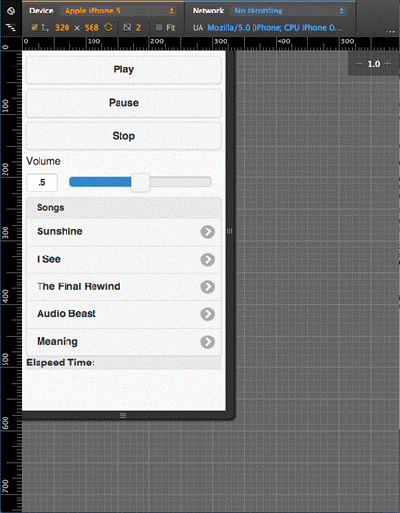
Figure7: The UI displayed as it might look on an iPhone. You can use the Devicedrop-down to choose a specific device you’d like to emulate.
Adding the guts:JavaScript to make it work
In this final section of the tutorial we’ll add the necessary JavaScriptcode to make the MP3 player work. Enter the code exactly as listed and we’ll breakdown the code and explain the various sections in a bit.
It’s also probably a good time to add our MP3’s to theproject. We’ll take care of that as well.
- Enter the following code right after your closing styletag in the document head.
<script> var player; var rngVolume; var intv; window.onload = function() { init(); //document.addEventListener('deviceready', init, false); } function init() { player = document.getElementById('player'); var btnPlay = document.getElementById('btnPlay'); var btnStop = document.getElementById('btnStop'); var btnPause = document.getElementById('btnPause'); rngVolume = document.getElementById('rngVolume'); btnPlay.addEventListener('click', playMusic, false); btnStop.addEventListener('click', stopMusic, false); btnPause.addEventListener('click', pauseMusic, false); } function changeVolume() { player.volume = rngVolume.value; } function pauseMusic() { player.pause(); } function playMusic() { player.play(); startTimer(); } function stopMusic() { player.pause(); player.currentTime = 0; stopTimer(); } function changeSong(song) { stopTimer(); player.pause(); player.src = "assets/" + song + ".mp3"; player.play(); startTimer(); } function startTimer() { intv = setInterval(updateTime, 1000); } function stopTimer() { clearInterval(intv); } function updateTime() { document.getElementById('timeOut').innerHTML = "Elapsed Time: " + secsToMins(player.currentTime); } function secsToMins(seconds) { var minutes = Math.floor(seconds/60); var theSeconds = seconds - minutes * 60; if(theSeconds > 9){ return minutes + ":" + Math.round(theSeconds); } else { return minutes + ":0" + Math.round(theSeconds); } } </script> Inside your www folder create a folder called “assets.”This folder will hold our MP3’s. (If more convenient for you, you may downloadthe MP3 samples used in this lesson here.)
Place the MP3 files inside the assets folder. If youuse the sample files I’ve provided, no further changes are needed. If you useyour own you’ll have to replace the names of the songs and files in the HTML.There are a number of lines in the HTML that look like this:
<li><a href="#" onclick="changeSong('sunshine')">Sunshine</a></li>If changing the MP3’s, inside the changeSong()function, replace the filename sunshine with the name of your file. Don’t addthe .mp3 extension—that’s taken care of in the JavaScript. You’ll also want tochange the name of the song displayed before the closing <a>nchor tag. Onceyou’ve changed your file names (if you’re not using the samples provided) it’stime to test your player.
Once again load your index.html file into the browser. Pressplay and listen to that sweet music!
Test all the features of your MP3 player. If they don’twork correctly (or at all) review the code below and see where you made anerror.
Congratulations! You’ve developed a full mobile app.
Here’s the full code for the MP3 player for your reference:
<!DOCTYPE html><html> <head> <meta charset="utf-8" /> <meta name="format-detection" content="telephone=no" /> <meta name="msapplication-tap-highlight" content="no" /> <!-- WARNING: for iOS 7, remove the width=device-width and height=device-height attributes. See https://issues.apache.org/jira/browse/CB-4323 --> <meta name="viewport" content="user-scalable=no, initial-scale=1, maximum-scale=1, minimum-scale=1, width=device-width, height=device-height, target-densitydpi=device-dpi" /> <link rel="stylesheet" href="https://code.jquery.com/mobile/1.4.5/jquery.mobile-1.4.5.min.css" /> <script src="https://code.jquery.com/jquery-1.11.1.min.js"></script> <script src="https://code.jquery.com/mobile/1.4.5/jquery.mobile-1.4.5.min.js"></script> <script type="text/javascript" src="cordova.js"></script> <style> #container { margin: 6px; } </style> <script> var player; var rngVolume; var intv; window.onload = function() { init(); //document.addEventListener('deviceready', init, false); } function init() { player = document.getElementById('player'); var btnPlay = document.getElementById('btnPlay'); var btnStop = document.getElementById('btnStop'); var btnPause = document.getElementById('btnPause'); rngVolume = document.getElementById('rngVolume'); btnPlay.addEventListener('click', playMusic, false); btnStop.addEventListener('click', stopMusic, false); btnPause.addEventListener('click', pauseMusic, false); } function changeVolume() { player.volume = rngVolume.value; } function pauseMusic() { player.pause(); } function playMusic() { player.play(); startTimer(); } function stopMusic() { player.pause(); player.currentTime = 0; stopTimer(); } function changeSong(song) { stopTimer(); player.pause(); player.src = "assets/" + song + ".mp3"; player.play(); startTimer(); } function startTimer() { intv = setInterval(updateTime, 1000); } function stopTimer() { clearInterval(intv); } function updateTime() { document.getElementById('timeOut').innerHTML = "Elapsed Time: " + secsToMins(player.currentTime); } function secsToMins(seconds) { var minutes = Math.floor(seconds/60); var theSeconds = seconds - minutes * 60; if(theSeconds > 9){ return minutes + ":" + Math.round(theSeconds); } else { return minutes + ":0" + Math.round(theSeconds); } } </script> <title>Audio Video</title> </head> <body> <div id="container"> <audio id="player"/> <source src="assets/sunshine.mp3" /> <source src="assets/sunshine.ogg" /> </audio> <button id="btnPlay">Play</button> <button id="btnPause">Pause</button> <button id="btnStop">Stop</button> <label for="rngVolume">Volume</label> <input type="range" id="rngVolume" min="0" max="1" step=".01" value='.5' data-highlight="true" onchange="changeVolume()"/> <ul data-role="listview" data-inset="true"> <li data-role="list-divider">Songs</li> <li><a href="#" onclick="changeSong('sunshine')">Sunshine</a></li> <li><a href="#" onclick="changeSong('iSee')">I See</a></li> <li><a href="#" onclick="changeSong('finalRewind')">The Final Rewind</a></li> <li><a href="#" onclick="changeSong('audioBeast')">Audio Beast</a></li> <li><a href="#" onclick="changeSong('meaning')">Meaning</a></li> </ul> <div data-role="footer"> <output id="timeOut">Elapsed Time:</output> </div> </div><!-- container --> </body></html>Feeling lazy? I’ve posted the entire MP3 player, public domainmusic, and other content here. You can thank me later.