As day-to-day business evolves into predominantly digitalformats, online learning systems, called learning ecosystems, are emerging as amore robust and flexible concept to support both traditional and innovativetraining environments. Microsoft SharePoint and Office 365 are so widelyadopted in the business world as a total business solution that it’s hard toignore the way organizations can benefit from also using them as an environmentfor learning curriculum like onboarding, upskilling, professional developmenttraining and certification.
Benefits of Microsoft SharePoint as a training tool
Microsoft SharePoint isone of the most prevalent, effective and extensible content collaborationsolutions utilized across a range of industries. Users appreciate the security,control, accessibility, business integration, ease of use and the wealth oftools integrated into their SharePoint intranets and extranets. BecauseSharePoint is robust, both as a content management system and as acollaboration tool, it’s easy to imagine the benefit it could bring as anatural training resource.
Since it is alreadyintegrated into many businesses, SharePoint is especially valuable as a tool toimplement training when a Learning Management System (LMS) is not in place,when the investment in an LMS is costly, or when there are other limitations toimplementing an LMS within the business environment. Typical limitations of atraditional LMS include awkward user interface functionality, challengingcontent management tools, and compatibility for limited content types. Unlikemost LMS’s, SharePoint is an extensible collaboration platform, so it is very wellsuited to be leveraged as a learning ecosystem.
Selecting a learning ecosystem for a blended learning approach
What is a learning ecosystem? A learning ecosystem is a hub for collaboration and learning. It containslearning content as well as other tools for learners, instructors and businessunits. Often, additional tools include ways for learners to interact by postingquestions, conducting discussions and gathering feedback. Learning content canbe accessed and assignments can be uploaded. Instructors can add pertinentcontent through a blog or send out information via email. In short, it’s avirtual classroom. Because SharePoint includes tools that match the needs of anecosystem, it’s an obvious choice.
An effective learning ecosystem creates a learningenvironment that meets the needs of the adult learner. (Figure 1) Addressinglearner needs can be accomplished by using a blended learning approach,allowing students control over their learning, and providing socialinteraction. It can be a challenge to find a platform that can support thisenvironment. SharePoint’s built-in Out of the Box (OOTB) features support thelearning ecosystem without creating the need for additional modifications tothe platform.
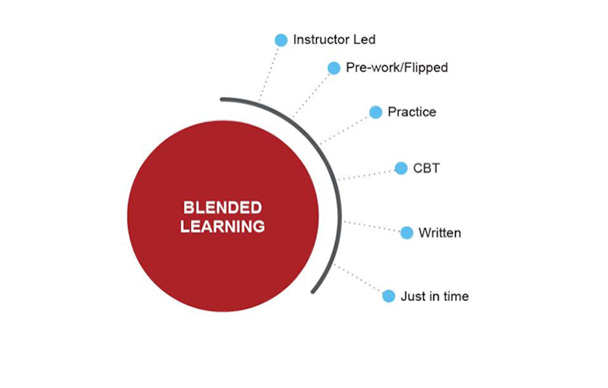
Figure 1: Blended learning environment components
What do adult learners expectfrom a learning experience? This may be highly variable, depending on theindividual, but in most cases, learners expect:
- Thatit mostly be learner-directed (“I should be able to do this/find thisinformation myself.”)
- Thatit acknowledge and build on the learner’s experience and prior knowledge
- That they will learn what they need to know and be ableto deal with real life situations that are contextual
- Thatit be learning that is life-centered, task-centered or problem-centered
Creating the ecosystem
Setting up an ecosystem in SharePoint involves three basicsteps: inventory your content, design the virtual classroom, and set up thecollaboration features.
Step one: inventory your content
The first step in developing anecosystem in SharePoint is to take an inventory of your content. In order to besure everything is accessible, it’s important to understand what is compatiblewith this platform. For example, SharePoint is compatible with any Microsoftfile (Word, Excel, PowerPoint and Visio). SharePoint will also support severalvideo file types such as AVI, MPG, MP3, MP4, OGG and WMV. PDF files, which areuniversally accessible and cannot be easily edited, are also frequently used.
As part of your inventory process,you should first make a list of all of content and file types and who, ingeneral, will be using it. Make sure to consider all of the ways you want tocommunicate or involve your learners. Will you need notifications, email, ascheduling system, contact information? It is helpful to make a list of thingsyou need the ecosystem to support. Then, talk to the SharePoint expert in yourorganization to see how it can be used to create a custom learning ecosystemthat matches those needs. (Figure 2
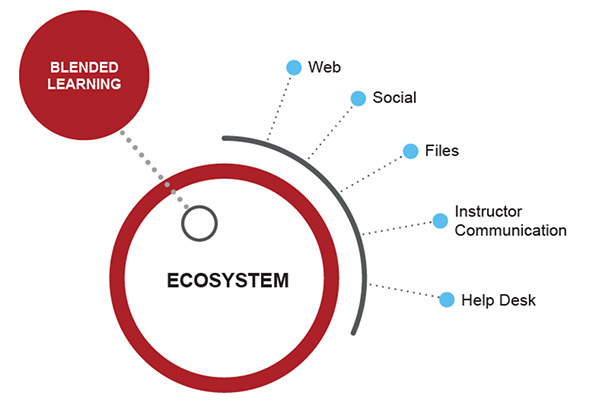
Figure 2: Functionalities within a custom learningecosystem
Step two: design the virtual classroom
Once you determine what files you will add to theecosystem along with your general minimum requirements, you will need to decidehow you can use SharePoint as your virtual classroom. It’s best to work with aSharePoint administrator or developer to establish the user and functionalrequirements up front. You may also want to consult a user interface designerto make sure the home page and navigation are intuitive and easy to use.
As part of the requirements-gathering process, you shouldestablish who will need access to the content and types of access they need;this is a foundational step in the development and curation process and key tohow SharePoint works best. Levels of access may differ depending on the type ofcontent, what the user is going to need to do with the content and how muchthey should have access to. You can work with your SharePoint expert todetermine the roles for access and what level of access applies to each. Thinkof this as a process where you are sorting the content into buckets, where eachbucket contains content that is relatable to a particular user group. Rules areput into place to determine who needs to see what content, and how they shouldbe able to interact with it. The groups will likely include learners,instructors, administrators of the site (and possibly administrators of thecontent) and the business leaders.
Step three: set up the collaboration features
SharePoint supports adding new content and allows forcollaboration through several built-in features.
SharePointlibraries and lists: As you build your ecosystem, thereare many ways to add content to the SharePoint environment. Document libraries can house Microsoft Wordor text files, as well as accommodate Excel and PowerPoint files. Excel spreadsheetscan also be integrated into a SharePoint list so each row of the spreadsheetbecomes a separate item in the list. You can place videos and other mediacontent into an asset library. Understanding what types of lists are availableto you in SharePoint and how they can be used is very valuable during the setupprocess.
SharePointcollaboration features: One of the great advantages of theSharePoint platform is its multitude of built-in collaboration features. Someof the features that can be leveraged for your ecosystem include: Announcementsthat can be forwarded to email, calendars for tracking important dates,discussion boards for learner interaction, blogs for instructor-added content,libraries for accessing content and uploading assignments, lists of links toweb resources, surveys for feedback, contact lists for curriculum and more.It’s even possible to create a library for completed assignments that tracksdelivery (due date), includes assessments and allows comments to be added. Thelearners would then be able to open their corrected assignments, receive theirassessments and read feedback from one location.
Table 1 matches learning needs to some of SharePoint’sfeatures.
Table 1: Learning needs matched to SharePoint features
Need | Purpose | SharePoint Features |
Instructor to learner communication | Presentation changes, cancellations and reminders |
Announcement list, list alerts, email (from the permissions list)
|
Presentation schedule |
To inform learners of presentations, assignments, labs, events, dates and times, etc.
| Calendar (can also have alerts enabled) |
Learner list | Course roster |
Contacts list (can include name, phone numbers, location, role, etc.)
|
Video instruction |
Learning materials
| Library or Web Part |
Written instruction | Learning materials |
Library, list item with link to attachment, link added to a page
|
Learner interaction | For discussions, questions/answers, group work, (a social community for learners) |
Discussion board, page/site for each group to use for collaboration
|
Additional instructor added content | Provide content related to the current learners in the course |
Blog
|
Web instruction | Links to assigned or pertinent content online |
Link list, links on a page, list item with link attached
|
Using SharePoint’s OOTB features gives users enoughfunctionality to develop a successful learning ecosystem with a shortdeployment time and low maintenance cost. There are, however, opportunities tomodify SharePoint based on your unique learning needs.
Customizing SharePoint
While SharePoint’s OOTB functionality is robust enough todevelop and implement learning and training programs, it can also be customizedto add features. This type of customization, including design, build andintegration, typically requires a more experienced developer.
Here are some common learning ecosystem requirements thatmay need custom solutions or other tools:
- Testing, scoring and reporting (Captivate has built-in toolsthat can be leveraged)
- Learner progress reports
- Performance tracking
- Web/page analytics (SharePoint’s OOTB version includes basicpage analytics)
Ongoing maintenance and efficiencies
After you’ve successfully deployed a learning ecosystemthrough SharePoint, it’s important to keep the content up to date. Edit thecontent regularly so it remains evergreen and usable, and move older content toan archive location (library, list or folder). Consideration should be given tocontent that is out of date and will not be reused, but be cautious aboutdeletion because deleted files are not recoverable. A SharePoint expert canhelp you develop an overall maintenance plan for your ecosystem. To efficientlybuild upon your learning ecosystem, your current site can also be saved as atemplate so it can be reused for additional topics, courses or groups.
Often times, thereare few outlets inside companies for learning content, and platforms aredictated by the IT department. With the prevalence of SharePoint as anintranet, workflow tool and more, using it for all of your learning needs keepsit accessible and makes it easy for users to consume your content.