
People know me as a tools expert, and most know that I findmyself using some tools over and over. Whether that’s because success breedssuccess and my reputation as an expert in any one tool translates into moreoffers of work by companies that also use that tool, or simply because certaintools are used a lot more than others in the eLearning world. I’m not sure—it’sprobably a bit of both. While I do use several tools on projects each year,there’s no question that I get more requests to work on projects that requireAdobe Captivate. Your experience may differ based on your own reputation as anexpert in a different tool. This is a question I would love to see addressedsome time.
Regardless, it’s true that I’ve been using Captivate forthirteen years now, starting when it was still called RoboDemo. Last week, Adobereleased Captivate version 9. With each new version, there have been some verywelcome additions, some new features that would first make us scratch our headsonly to find eventually that we couldn’t live without them, and some featuresthat perhaps addressed certain audience needs and not others (I’m looking atyou, Equation Editor).
What’s new?
Here are my top nine reasons to update to Captivate 9:
- Adobe Captivate Draft is a free iPadapp that lets you brainstorm and storyboard and import seamlessly intoCaptivate
- Enhancements to actions are very welcome improvements in bothsimple actions and advanced actions.
- Responsive learning improvements, forinstance, providing five breakpoints rather than just three allowing us tocover both landscape and portrait modes for tablets and smart phones.
- Multi-state objects finally! Yes, and abeautiful feature it is!
- Quiz and Question enhancements that letyou now set up quiz questions as knowledge check or practice questions that theLMS won’t track and that won’t count toward or against the learner’s quizscore. You can also now set up Next and Back buttons that appear only in Reviewmode without the need for hiding or showing them though actions.
- Scaled-Vector Graphic (SVG) support allowsyou to now natively use in Captivate any SVG files you have or create in aproduct like Adobe Illustrator—and they will scale beautifully.
- Direct testing in SCORM Cloud is now aone-button click rather than publish, then upload, then test. Nice! I use theSCORM Cloud all the time to test my files for SCORM compliance.
- Motion paths and other effects are muchmore flexible and transparent now to use. I think you’ll love them.
- Free access to more than 25,000 eLearning assetssince Adobe teamed up with theeLearning Brothers to give you direct access to a ton of assets you candownload and use freely.
There are plenty of other improvements I like that I’ll justlist here:
- You’ll be able to publish to Adobe’s new Adobe Captivate Prime LMS.
- If you’re using Captivate on a Mac, you can create software simulations from iPads andiPhones by recording your iOS device screenas a full resolution HD video while you perform tasks on the iOS device itself—thisrequires connecting the iOS device to your Mac with a Lightning cable.
- There are three new smart learning interactions, for a total of 32 now.
- The Charactersdialog is much improved, much easier to use.
- Geolocationhas been enhanced further, allowing scripts to launch automatically whenthe learner changes location, for instance, or letting you emulate a locationto test the results.
- You can now set the Preview Next option to just oneslide in the preferences, whereas before the minimum was two. This lets yousee a slide as if it had been published, with full interactivity, video, and soon. Too often, those new to Captivate choose the Play This Slide optionthinking it will show them all media and interactivity, but that is meant onlyfor timing objects on the screen, with or without audio. This is a good change.
A little more detail on the top nine features (and what I reallythink of them)
A. Adobe Captivate Draft
This is a brand new app for iPads that lets you storyboardideas, dropping in images, text, audio, and placeholders for web links andvideos, and much more. You download Adobe Captivate Draft from the Apple appstore. It’s free, it’s a really fun app, and it’s easy to use. The best part isthat you can upload the storyboard you create to your Adobe account wheneveryou’re connected to the Internet and then you can bring it into Captivate as aproject using the new option you see in Figure 1 below. It gets converted toCaptivate slides quickly and you can then build from there. It’s very cool, andlets me get a real head start on projects.
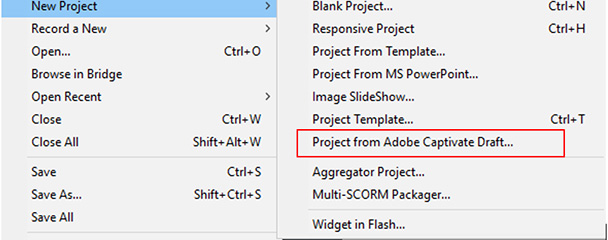
Figure 1: Open Captivate Draft Project
What I think—
While I’ve only playedwith Captivate Draft thus far and haven’t used it on any real client projects,I’m intrigued by the possibilities. This tool may become a standard part ofclient projects for me. Time will tell, but I’ve got a good feeling about this.
B. Responsive learning improvements
Responsive learning refers to eLearning you create thatworks equally well on desktops (or laptops), tablets, and smart phones. WhileCaptivate 8 was one of the first eLearning development tools to allow forresponsive learning, today there are a handful that offer this feature.However, I’ve yet to see any other tool offer as much customization in allthree views as Captivate has. It does require more work to make everything lookperfect, but the other tools force you more into a templated approach (atleast, those I’ve seen thus far). I prefer that my eLearning designs not belimited by page types and such, but that I develop my own, specific to thelearning and the audience. Captivate lets me do that.
More views
In version 8, there were three breakpoints offered, theaforementioned Desktop, Tablet, and Mobile (aka smart phones). Version 9 offerstwo more to address some highly requested needs (Figure 2): Tablet Portrait andMobile Landscape (shown as Custom Mobile in the Figure). In version 8, tabletswere assumed to be landscape and smart phones were assumed to be portrait, soif you turned either one 90 degrees, you would see your learning at less thanfull screen. Version 9 changes that so now you can take full advantage of everypossibility. You can delete any breakpoints you don’t want in Captivate 9.

Figure 2: There are now fivebreakpoints rather than three, covering each orientation
More responsive features
As Adobe released Captivate 8 and its subsequentdot releases, responsive design projects became more feature-rich with each newrelease, and now, in Captivate 9, you can finally use any motion path and mostevery other effect you like, just as you can in non-responsive projects. SeeFigure 3.
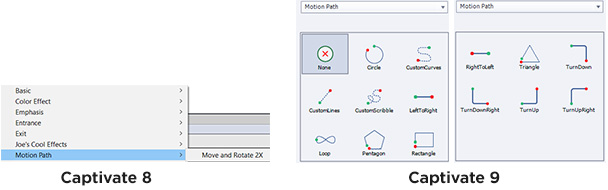
Figure 3: Captivate 8 allowedonly one type of motion path in responsive design, but Captivate 9 allows for every typeA new preference has been added in the PublishSettings if you would rather learners stick with portrait orientation; you candictate what message should appear if they try to turn to landscape mode. SeeFigure 4.

Figure 4: A new preferencefor responsive design projectsConvenient new features also include the abilityto center objects horizontally and/or vertically across all views and to applyany position changes you make to other items of the same style or type. These arefeatures that, prior to Captivate 9, were available only in non-responsive projects.See Figure 5.

Figure 5: New positioningoptions in responsive design projects
What I think—
Some folks I’ve methave created ten or more projects in the last year using responsive design.Others have done none. I’m in the middle: some of my clients wanted mobile—henceresponsive design—and others have not. I really like these added new featuresbecause they give me more power (more control over what the learner will see ateach breakpoint) while at the same time making life easier (alignment options,fewer limits on effects). Captivate will continue to be the most powerfuleLearning development tool for responsive, but it does mean that more planningin the design stage should take place. I’d rather have the ability to have thetool accommodate my instructional design than have my instructional design fitinto what a tool will allow—and Captivate 9 does this.
C. Enhancements to actions
As a long-time programmer and coder, I welcome three newfeatures in Captivate’s actions.
Up until now, for simple actions such asattaching a Hide or Show action to a button, when thelearner would click the button it would dutifully hide or show the object you wanted hidden or shown, but then thetimeline would continue moving ahead. If we didn’t want that to happen, if wewished to keep the timeline paused to give the learner time to choose otheroptions, we would be forced to take that simple Hide or Show (or anyother) action and place it all by itself in an advanced action. That feltrather odd, but it worked because an advanced action by default does not movethe timeline (you can make it move by adding a Continue action in the advancedaction).
However, now every simple commandthat normally would have moved the timeline has a nifty way to turn off thatoption. See Figure 6.
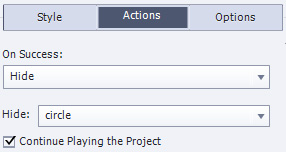
Figure 6: Want to keep theproject paused? Turn off the Continue Playing option!The second new feature is a new set of simpleactions for changing objects’ states (which I’ll discuss in a bit). The firstof these, Change State of, is alsoavailable as an action when you create advanced actions.

Figure 7: New object stateactionsThe third new feature that I’ve wanted for oh-so-very-long is the ability to pausean advanced action midstream. This offers up a whole ton of possibilities forgreat visual effects, for example. I believe the main reason for this is toallow more pleasing sequences of object state changes, but this new action isuseful in many other ways too. You can use a literal value, such as the 1.24seconds you see in Figure 8, or you can even use a variable, which makes mesmile.

Figure 8: Delay Next Actions
What I think—
If you know me well,you know that I love creating powerful actions that let me give my clients whatthey want. For instance, this year, a client wanted me to create a veryspecialized multiple-choice question with multiple responses, multiple types offeedbacks, the coloring of answers, etc. Captivate’s quiz questions didn’t havesome of those features so I had to create my own (or disappoint my client).Using Advanced Actions and variables, I managed to create exactly what wasrequested. When all was said and done, I changed my Advanced Actions to SharedActions and was able to repeat using them over and over more easily andquickly. This is what I mean when I say I like a tool with power. The new featuresare certainly welcome (I’ve long since requested both) but I’m really hopingthat Adobe will see fit to make the Advanced Action editor much morescript-friendly for those of us who work much faster in that mode. CreatingAdvanced Actions has always felt just a tad slow for my taste, but I thinkothers may prefer the current method, so I suggest Adobe allow for bothoptions.
D. Multi-State Objects
Yes, Captivate finally allows objects to have multiplestates! This makes it a lot quicker and easier when you want to present alearner with an object that is changing either on a timed basis or when the learnerperforms an action. For instance, you can have an on-screen character whochanges facial expression depending on actions the learner takes. See Figure 9.
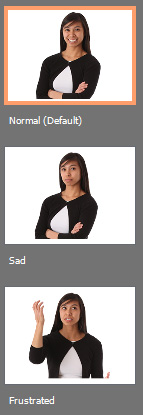
Figure 9: Create ObjectStates
You can create as many states as you like. For instance, Icreated the ones you see in Figure 9 above. Subsequently, I can use the actionsI mentioned earlier, the most useful of which is Change State of. See Figure 10, where you see that the states Icreated are listed by name, so if I want the character to look frustrated by achoice the learner made, I just switch the state to Frustrated on that choice.
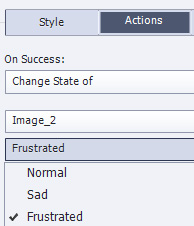
Figure 10: Change State of
What I think—
Multi-state objectsallow for a lot more flexibility and at the same time they make showing andhiding elements much easier. I think I’m going to use the heck out of thisfeature.
E. Quiz and question enhancements
You’ll see a new slide type now when you dropdown the Slides option, called Knowledge Check. See Figure 11.
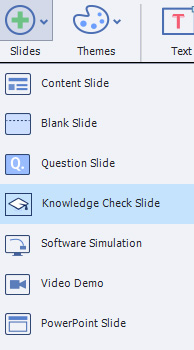
Figure 11: Knowledge CheckSlide optionKnowledge Checkslides work exactly as Question slides except there is no scoring involved andof course no reporting to an LMS on these questions. This lets you set uppractice questions for the learner without worrying about messing up the quizscores.
A new set of Next and Back buttonsare now automatically made available on Quiz questions that the learner willsee only in Review mode. It has beenvery confusing for some learners when the developer would have both a Next andSubmit button on a quiz slide. The learner would click Next thinking his or heranswer was being registered when in reality it would only register on clickingthe Submit button. See Figure 12. We’ve managed to make this work in the past,but only with advanced actions and variables. This simplifies the matter.

Figure 12: Quiz QuestionReview Next and Back
What I think—
These are welcome newfeatures, especially the Knowledge Check slides. In the future, I’d love to seemore flexibility in how questions are formatted and have more optionsavailable.
F. Scaled-Vector Graphic Support
Scaled-VectorGraphics (also known as Scalable Vector Graphics or SVG) are those images thatare not stored pixel by pixel, but as mathematical formulae. Yes, you buildthem in a tool like Adobe Illustrator, and you don’t need to know any math, butthe files created are such that the images will look crystal clear at anyresolution. That choice has now been added to the Media menu. See Figure 13.
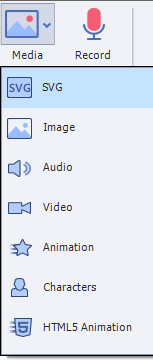
Figure 13: The new SVG option
What I think—
What’s there not tolike about this option? We can finally have images that are truly scalable. Nowto start learning Adobe Illustrator!
G. Direct testing in SCORM Cloud
TheSCORM Cloud (https://cloud.scorm.com) hasbecome an indispensable tool for testing my lessons to ensure they areSCORM-compliant before testing them in the client’s LMS. It’s great because you can upload up to 10 zippedSCORM-ready lessons of up to 100 MB each free of charge. You can delete lessonsyou’ve uploaded previously, so as long as you don’t have more than 10 at atime, it doesn’t cost you anything.
The normal process I go through is to:
- publish with SCORM settings,
- go find the resulting zip file,
- open cloud.scorm.com in my browser,
- choose the Import Course option,
- launch the course and test it out, and
- delete the course afterward.
Now I just choose the option you see in Figure 14 under Preview. Captivateuploads and launches the file automatically. As I walk through the lesson, theSCORM Cloud is generating a log that I can download to let me see exactlywhat’s going on behind the scenes. Regardless of whether I want that level ofdetail, when done, I can choose to relaunch the course again or review thecourse results in a report that’s easy to read. Closing the preview automaticallydeletes the lesson off the SCORM Cloud.
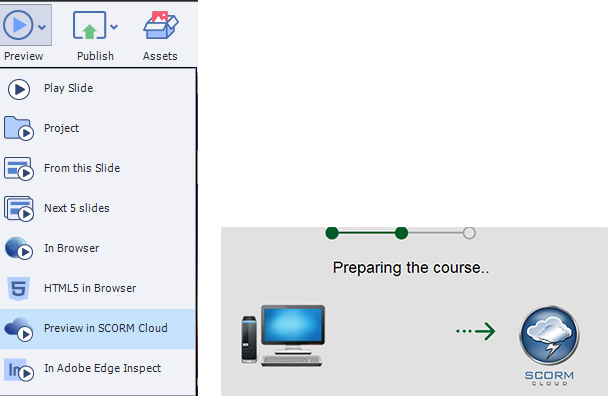
Figure 14: The new Preview inSCORM Cloud option
What I think—
Simply put, I lovethis new option. It will save me a lot of time.
H. Motion paths and other effects
I’ve used motion paths for a variety of learningapplications since they were first introduced in version 5. For instance,they’ve been useful in having a learner direct a fire investigator to differentparts of a hospital floorplan and then have the character move down thehallways, correctly turning right or left where necessary. I’ve mentioned abovethat now motion paths can be used in responsive design projects, and that’sgreat, but the whole approach to adding effects has been greatly improved in Captivate9.
First, the dialog is much faster and morepleasant now. We don’t have to preview each time we want to see what an effectmight do. Nope, as soon as we roll over an effect in the dialog, the affectedobject will exhibit the effect. Nice!
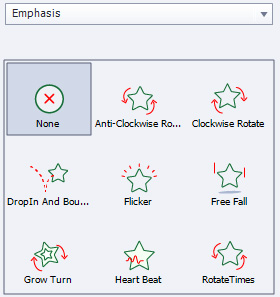
Figure 15: The New EffectsdialogRather than having to juggle two differenttimelines, the main timeline and a separate effects timeline, we can now seeeffects directly on the main timeline, making it easier to make adjustments.See Figure 16.

Figure 16: Effects are now onthe main timeline
Also, you can see a convenient list of theeffects that you’ve applied to an object in the Effects dialog. You can see inFigure 17 that the list reflects what is on the timeline.
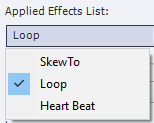
Figure 17: The list ofapplied effects on an objectNow motion paths can truly be curved andcircular, as you see in Figure 18. We no longer have to fake a curved path byhaving lots of short segment paths strung together in a curved fashion! You canmake any path you wish now.

Figure 18. Curved paths
What I think—
There’s no questionthis gives me lots of new options and makes it easier for me to apply effects.I like this very much.
I. Free access to more than 25,000 eLearning assets
By now, almost everyone has heard of the eLearning Brothers.They provide libraries of thousands of templates, games, character photos, andmore that you can use in a variety of ways and in a variety of tools. Now Adobe has teamed up with the eLearning Brothers togive us free access to over 25,000 assets. Again, free access. It’s a wonderful thing. Clicking the new Assets toolbar button  opens a window with all of those lovely assetsready for you to download. See Figure 18. Once you download characters for instance, you’ll find them in thenormal Characters dialog.
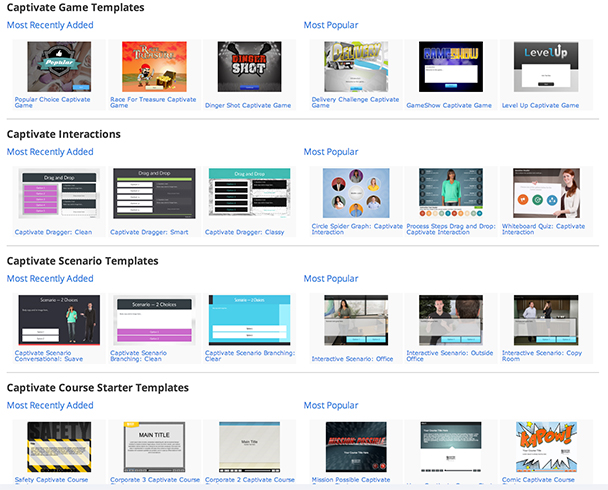
Figure 19: The opening assetsscreen
What I think—
I can’t think of anyreason to hate this idea. The only concern I may have is if everyone startsusing the same assets, everyone’s eLearning will start to look the same, butwith all these assets available, I don’t think I’m too worried.
Final thoughts
Every authoring tool is jockeying for market position. AdobeCaptivate continues to have the biggest market share (the low subscriptionprice has certainly not hurt) but Adobe has not rested on its laurels. Yes,each tool vendor looks at what its competitors are doing and tries to leapfrogthe feature sets of the tools of those competitors, and Adobe is no exception.You can’t ignore your competition.
More importantly, though, is listening to what yourcustomers want, and Adobe does focus on that quite a bit, sending out itspeople to talk to customers on a regular basis.
No matter what Adobe adds to a new version,there will always be some of us who want more or who might have chosen adifferent feature to add than one that was. The important question to ask is, “Arethe added features worth the upgrade?” In this case, the answer is definitely Yes.Is there room for improvement? You bet there is! Is that true of any software?Of course! I’m happy to start using Captivate 9 with its new features andpossibilities for better instructional design and I look forward to seeing whatAdobe does next.