
Many, if not most, eLearning projects start out as liveinstructor-led lessons. Subject matter experts are asked to hold regularsessions in a company meeting room or online to train others in theorganization on their area of expertise. Eventually, someone within theorganization decides to convert the classroom training into eLearning.
Of course, while eLearning has many advantages overclassroom-based training, it also suffers from a few disadvantages, at least inmost eLearning courses that have been created until now. One of thebiggest disadvantages is the lack of socialnetworking. Whereas you can ask an instructor questions while sitting in aclassroom, usually you do not have someone to whom you can turn and ask thosequestions when taking an eLearning course.
The solution in many cases is to incorporate socialnetworking into your eLearning. You can allow learners to contact one person ormany, using email, Twitter, Facebook, Google+, and other social networks. Itmay not give them the immediate feedback that asking a live instructor usuallydoes, but it’s surprising how quickly the answers can come when people tweet orpost a question elsewhere.
In addition, social networks can help employees learn towork together on teams. You can give challenges to a group of employees; theteam members can decide how to divide up the work and perhaps make a record of eachmember’s contributions.
Trivantis Lectora
Among the principal eLearning tools (those that take up mostof the market share), Trivantis Lectora is the only one that has socialnetworking features built in. However, it’s not difficult to add a socialnetwork link or to have a live social network appear in a web window withinyour course.
Both the desktop version of Lectora and Lectora Online includeoptions for inserting social media links. They both include almost identicaloptions, the only exception being that Lectora Desktop (Figure 1) includesFacepile, which Lectora Online (Figure 2) does not.
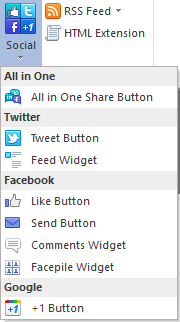
Figure 1: Lectora Desktop social network options
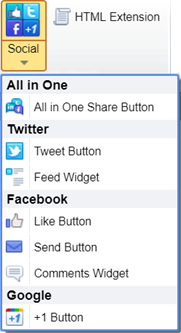
Figure 2: Lectora Online social network options
Note that the first option in each is the All in One Share Button. You can seewhat it looks like in the desktop version (Figure 3) and the online version (Figure4).

Figure 3: The All in One Share in Lectora Desktop

Figure 4: The All in One Share in Lectora Online
You can also insert individual buttons and widgets, as youcan see in Figure 5.
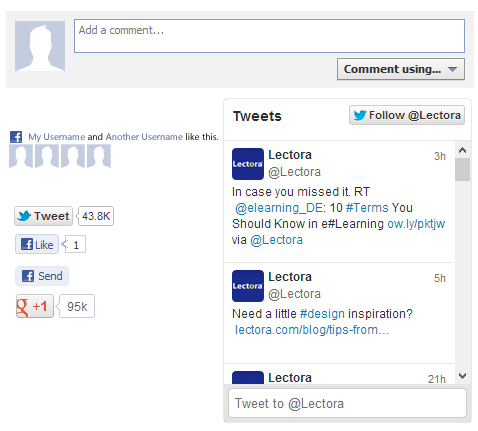
Figure 5: Individual social networking options in Lectora
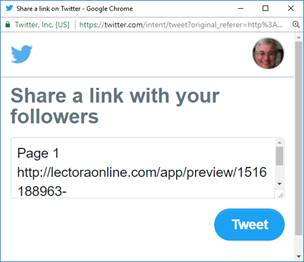
Figure 6: The tweet option in Lectora
You can set the properties for each of the buttons andwidgets. When published to a web server, or when using Lectora Online, you cansee the result of the buttons and widgets above.
Clicking  will open a window in which the current link will populate the tweet box.Learners can change or add the tweet before sending it. For instance, for teammembers or specific topics, they can add a hashtag. See Figure 6.
Similarly, you can:
- Give the current link a Facebook “like”
- Send the link to one or more friends on Facebook
- Post a message to your Facebook page
- Post the link to Google+
- Show a Twitter feed of your choosing
Clicking  leads to many more options. First you see the drop-down list in Figure 7.
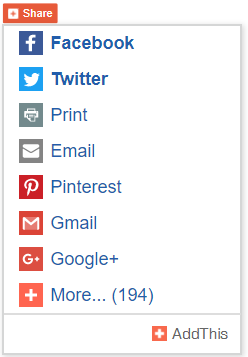
Figure 7: The Share drop-down list
If you click More(Figure 7), a new page opens with 194 different options. (Impressive!) SeeFigure 8.

Figure 8: 194 social networks in Lectora
Other authoring tools
Most authoring tools offer a feature that lets you insert alive web window in your eLearning. Lectora calls it a web window. It’s called a webobject in Articulate Storyline, Articulate Presenter, Adobe Captivate(under Objects > Web), Adobe Presenter, and iSpring Suite. Itsname may vary in other authoring tools.
In most authoring tools, you have several options aside fromproviding the link to show. Yours may allow you to:
- Use a URL or an embed code
- Resize the window to any size you need
- Have the website show automatically, or showwhen clicked
- Let learners see browser controls and/or theaddress bar, or neither
- Display the site embedded in the current window,in a separate window, or in a separate tab
- Show a border around the window or not
- Show scrollbars or not
As a web object allows you to point to any site on theinternet, you can set them up to link to a set of resources, to companywebsites, and to any other website that could be useful.
What’s more, you can use it to point to any social network,including a team site, a forum, Twitter, Facebook, and any other usefulnetwork. The social network can be stored on your local intranet or be public.It is up to you. Use your imagination and allow learners to work on teams, askquestions, and work in other ways that help them collaborate with others.
Figure 9 shows a web object embedded in a Captivate lessonthat shows the Twitter feed from the eLearning Guild’s Learning Solutions Twitter account. All I did was to go to theTwitter page, choose the Embed ThisProfile option, then choose the EmbeddedTimeline option. It provided the link, which I then copied into the webobject in Captivate, and I was done. This is useful for letting learners see whatothers may have tweeted about a particular topic. To have them send their owntweets, you’ll want to have the web window open the main Twitter page and havethem log in to their own account.
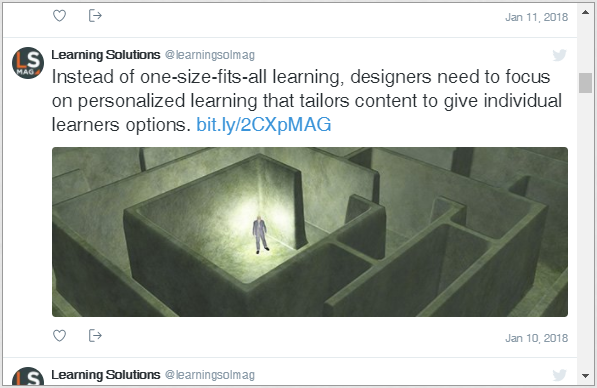
Figure 9: A live web object in an eLearning course
Have you implemented a social networkingsolution in your eLearning? Do you have an idea that you’d like to try? Why notshare it in the Comments box below?