
Every rapid development tool has a finite number of native features,but when more sophisticated designs demand customization, a tool’s ability tointegrate custom code can be the difference between acceptable and remarkablelearning experiences. eLearning developers usually underestimate Lectora,though one of its great strengths is the ability to integrate custom codealongside the out-of-the-box features.
Use cases for custom code integration
Even a novice coder can write and embed simple code to meetdesign demands. Let’s take a look at a couple of use cases for customJavaScript.
Control access based on launch date
A client engaged my team for services, and we defined thework effort and timeline. However, as development began, it became clear thatthe program would be better rolled out in phases, one topic at a time. My teamcould not extend our engagement beyond the defined scope, and the client wantedto ensure that people were not working ahead in the program. Therefore, weneeded a way to set up the course so that each section would only be accessibleafter a specific date.
While Lectora has reserved variables for the current dateand time, they’re not in a format that is easy to test against. JavaScriptkeeps time by counting the seconds elapsed from January 1, 1970, providing away to easily test the current date against the desired launch date. Using oneline of custom JavaScript, we were able to structure the program with the bestinstructional design without compromising scope or timeline.
Determine user’s browser size
“Responsive” is all the rage at the moment—the ability todevelop a single piece of content that automatically adjusts to the user’sdevice. While true responsive design adapts dynamically to a user’s device andfeatures scaling between break points, a compromise when using a tool thatdoesn’t accommodate true responsive design is to automatically direct users toa version of the material that is appropriate for their device.
Ultimately, how you address multiple devices is a designdecision—should you redirect users to a version of the course that is best fortheir device? Should you recommend users re-launch the course on a differentdevice? Should you recommend users maximize the browser on a laptop? Howeveryou decide to respond to different devices, determining browser size isparamount. Leveraging JavaScript to determine each user’s browser height andwidth allows you to implement whatever design decision is appropriate for yourunique situation.
So, how do you get JavaScript up and running in Lectora?
Short and sweet JavaScript integration
One of the native options in Lectora Actions is “runJavaScript,” which makes for easy set-up of short functions. For example, inthe phased rollout use case above, we need just one line of JavaScript. Here’show we set that up using Lectora’s Action object.
Let’s say the April section can’t be accessed untilApril 1, 2015. Use https://www.epochconverter.com/(or a comparable site) to determine the Epoch value of April 1, 2015. Figure 1shows you how this works.
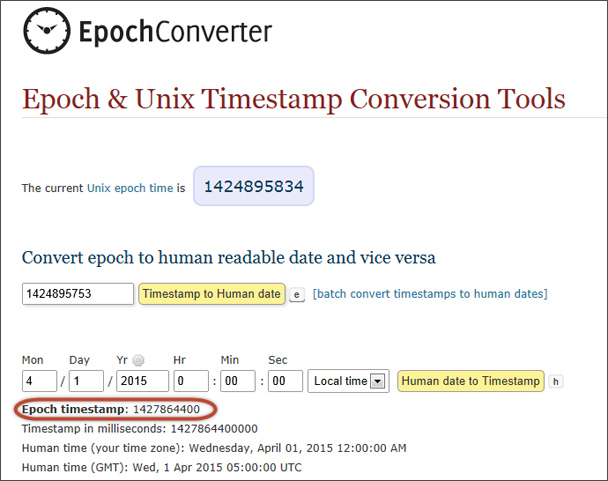
Figure 1: EpochConverter
Next we need to know when the user tries to access thecontent, and capture that value in a Lectora variable so we can use native Actions.Here’s how:
1. Add an Action to the desired object.
2. For the Action and Target, select Run JavaScript (Figure2).
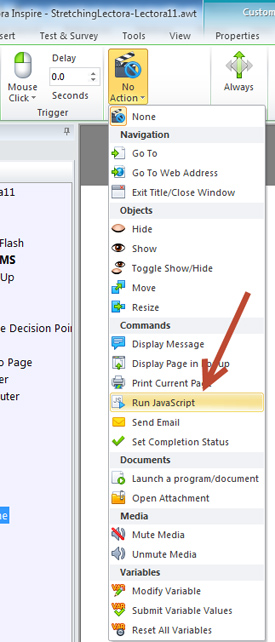
Figure 2: Running JavaScript
3. To capture the current JavaScript Epoch date in a LectoraVariable, enter the following JavaScript in the text box (arrow in Figure 3):
Var_today.set(Math.round(new Date().getTime() / 1000))
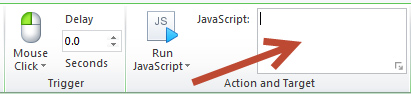
Figure 3: Enter the JavaScript in the text box to capture thecurrent JavaScript Epoch date
Hint: To target a Lectora variable in JavaScript, append “Var” to the front of the Lectoravariable. For example, in the code above, the Lectora variable is _today, (Var_today when targeted in JavaScript).
4. Use Lectora’s native interface to test if it’s time tolaunch the content. In our example, let’s add an additional Action to thebutton (Figure 4).
On: Trigger
Action: Desired Action (in thisexample, go to Next Page)
Condition: If _today greater thanor equal to target Epoch time
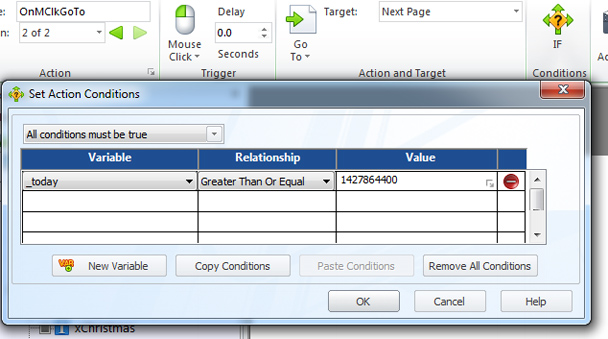
Figure 4: Setting Lectora’s native interface to test if it’s timeto launch the content
Hint: When a Lectora object has multiple Actions with thesame trigger, the Actions run in the order they’re listed in the Title Explorer,top to bottom.
For more complicated or lengthy code, we need to becomeacquainted with Lectora’s HTML Extension Object.
Meet the HTML Extension Object
Lectora’s HTML Extension Object is the key to embedding alot of custom code. The power of this little scroll is immense. A developer canadd ASP, CSS, PHP, Cold Fusion, Shockwave, Java, and JavaScript. The HTMLExtension Object is also appropriate to use when coding a JavaScript functionthat will be activated by multiple triggers, or on multiple pages. For example,in the use case we discussed above about determining the user’s browser size,we will need to write a long JavaScript function that accounts for multiplebrowser types and versions, and we may want to test the user’s browser heightat multiple points throughout the course.
Basics of JavaScript integration using the HTML Extension Object
Before adding the HTML Extension Object, consider whether itshould be added to the page, section, chapter, or title level. Generally, addobjects to the lowest efficient level. For example, if you plan to use the codeon only one page, the HTML Extension should be added to just that page—but ifthe code will be needed on multiple pages in a chapter, consider adding theHTML Extension Object to the chapter level. In our case, we may want to testthe browser size on any page in the title—so we’ll add the HTML Extension tothe title level.
1. Add an HTML Extension Object from the Insert ribbon (AddWeb Object section) (Figure 5).
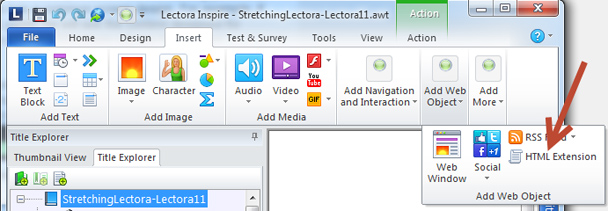
Figure 5: Adding an HTMLExtension Object from the Insert ribbon
2. For the Type, select Top of File Scripting to place yourcode above and outside the <HTML> tags of the HTML page (Figure 6).
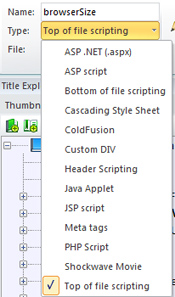
Figure 6: Select Top of FileScripting to place your code
There are two ways to enter your code. The Edit button (Figure7) will open a pop-up box, where you can enter your code directly into Lectora.If you prefer to write code in a separate file, use the File drop down menu toattach a file (.txt or .js). This is particularly useful if another person willbe writing the code and can send you the file. For this example, we are goingto use the Edit button.
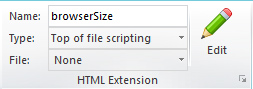
Figure 7: The Edit buttonallows you to enter your code directly into Lectora
3. To determine the browser height and width, and capturethat information in Lectora Variables, enter the following JavaScript in the pop-upbox (also see Figures 8 and 9).
<script>function browserSize() { var myWidth = 0, myHeight = 0; if( typeof( window.innerWidth ) == 'number' ) { //Non-IE myWidth = window.innerWidth; myHeight = window.innerHeight; } else if( document.documentElement && ( document.documentElement.clientWidth || document.documentElement.clientHeight ) ) { //IE 6+ in 'standards compliant mode' myWidth = document.documentElement.clientWidth; myHeight = document.documentElement.clientHeight; } else if( document.body && ( document.body.clientWidth || document.body.clientHeight ) ) { //IE 4 compatible myWidth = document.body.clientWidth; myHeight = document.body.clientHeight; } Var_browserWidth.set(myWidth) Var_browserHeight.set(myHeight)}</script>Script explained (just enough to troubleshoot):
Line 1: Names the function “browserSize”
Line 2: Creates JavaScript variables for width and height, with initialvalues of 0.
Line 3: Determines if the width can be retrieved from the window object.
Line 4: Code comment*
Line 5-6: Captures window width and height in JavaScript variablesusing the window object.
Line 7-9: Determines if the width can be determined using thedocumentElement object.
Line 10: Code comment*
Line 11-12: Captures window width and height in JavaScript variablesusing the documentElement object.
Line13-14: Determines if width can be determined using the body object.
Line 15: Code comment*
Line 16-17: Captures window width and height in JavaScript variablesusing the body object.
Line 18: Closes clause.
Line 19-20: Captures value of JavaScript height & width variablesin Lectora variables.
Line 21: Closes the browserSize function.
* Anything following two forward slashes in JavaScript is a commentabout the code. Put anything you want after two slashes on a single line sofuture developers know what’s going on in your code.
Figure 8: The script explained line by line
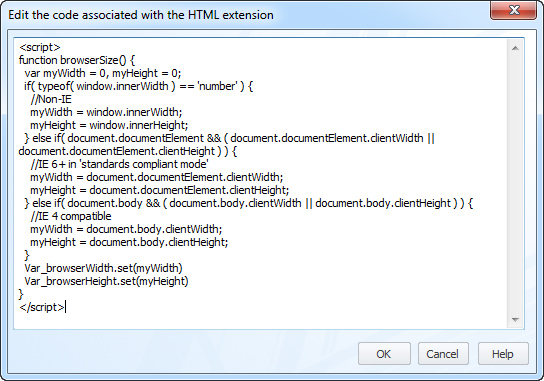
Figure 9: Your script shouldlook like this when you are done
4. A JavaScript function only runs when triggered, so we’lluse a native Lectora Action to run this script (Figure 10).
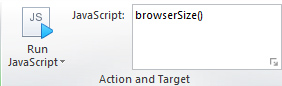
Figure 10: Use a native LectoraAction to run the script
Hint: JavaScript is case-sensitive. If something is notworking, double-check your capitalization.
From here, you can leverage the browser height and widthhowever desired, using the native Lectora variables (_browserWidth and_browserHeight).
Stretch yourself and Lectora’s native offerings with a littleJavaScript!
When you reach the end of your tool’s nativeofferings, don’t rush to compromise your designs. Reach for a bit of customcode and your rapid development tool can do more than you anticipated!