
At the beginning of the year, Learning Solutions Magazine published my article on AllenInteractions ZebraZapps, which at the time was what is now known as the Creatorversion. If you’re not already familiar with ZebraZapps, I recommend that youread that review first, which covers all of the most important features: https://www.learningsolutionsmag.com/articles/826/toolkit-zebrazapps-is-ready.
Now Allen Interactions has a new version ready, ZebraZappsPro. While it contains all of the many features of Creator, it adds severalimportant elements that any serious eLearning developer will want. This reviewcovers all of the new features available in the Pro version. So let’s take alook!
Creating a new project
When you start a new ZebraZapps project, you’ll see some newoptions. See Figure 1.
Figure 1:Starting a new Zapp
New features include a decision as to what your projectshould do when a learner returns to the lesson: restart, resume, or let thelearner decide. You also can choose from a lot of templates.
Templates
Both the Pro and Creator will have dozens of new templatesfrom which to choose if you wish to use one. The templates are built in anumber of different formats and sizes, and they are constructed entirely inZebraZapps. They help you save a lot of time, but you can also change anythingyou like in any of the templates and make them completely your own. Thetemplates usually include navigation controls so you really only have to enteror change the content in a template to have a full-fledged lesson ready to go,if you like the layout and colors. Figure 2 shows a Quad template, in which thelearner can choose one of four pages, at which point the page zooms to fullscreen. Each page can contain any ZebraZapps content you wish, including fullinteractivity. Interactions remain fully active whether reduced to a quadrantor commanding the full screen. Thus the learner can work four interactions orsimulations simultaneously.
Figure 2:Quad template
Figure 3 shows an Easy Navigation template open in edit modeso you can see how each object can be edited and wired.
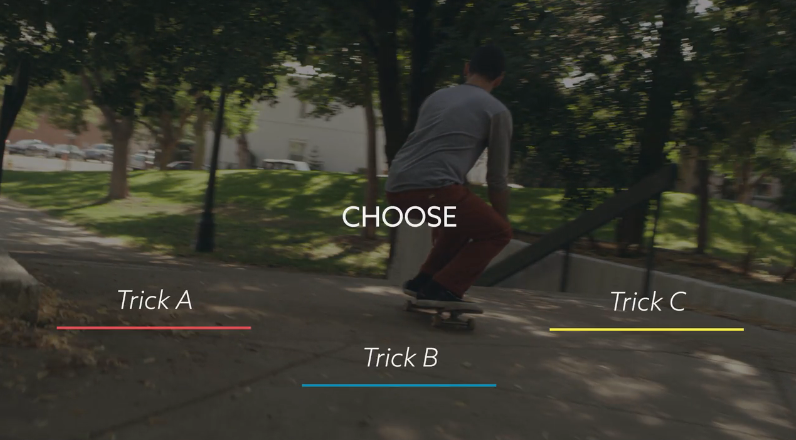
Figure 3: Easy navigation template, in edit mode
Using the Event Flow
Once you’re in the main interface, you’ll also be met with anew feature: the Event Flow. The first items presented are a blank Master pageand a blank Event. Figure 4 shows the interface after the developer has createdsome Master pages and Events. Notice below there is a navigation panel thatlets you flip between Master pages and Events quickly. In this particular case,you see a project that has three Master pages (stacked on the left) and 20 Eventpages. The split slider allows placing any two pages side by side. When slidersections come together, both stacks will show what comes before and after each Event.Reordering Events is as simple as dragging them to the scroll bar and droppingthem in place.
Figure 4: A Master page and an Event
Master pages
Everybody knows what aMaster page is, but there’s a cool, unique bonus of ZebraZapps Master pages:they can contain full interactivity that’s added to every Event to whichthey’re applied. As such, they’re great for centralized navigation andproviding user utilities, such as a glossary or reference material. Master pagesin ZebraZapps can, in fact, contain anything you like and can then be appliedto any Events you create. There is an option to make objects on Master pages appearon top of objects in Events (foreground) or behind those objects (background).You can have up to 12 Master pages in any project, and you can apply as many Masterpages as you like to any Event. You can add more Master pages by clicking a + signto the right or left of a Master page. See Figure 5.

Figure 5: Adding more Master pages
Events
An Event can be anything you want it to be, from a simpletext object to a full-fledged interactive simulation. Events help you toorganize your content any way you like, but most use it to organize theirinteractions so that each is a discrete experience that can stand alone or flowinto the next Event. However, this is no excuse to create linear content! An Eventcan link in many ways to other Events, so you can make your projectsinstructionally creative and your lessons engaging and true learningexperiences.
You create new Events by clicking the + sign to the right orleft of the current Event, just as was true for Master pages. See Figure 6.
Figure 6: Adding more Events
Double-clicking an Event or a Master page will open it forediting. Alternatively, there are shortcut icons attached to Events that allowyou to run or play an Event. Once you’re editing the stage, if you’ve been auser of ZebraZapps Creator, you’re back in familiar territory; see Figure 7. However,you’ll find here a few new items, too.
Figure 7:The stage; note the Event features
At the upper left, you’ll see a new tool called Event Flow.It will zoom you back out to the Events and Master pages, as you saw in Figure 4.
At the bottom, you’ll see theEvent message center, which gives you options that relate to the Event as awhole. See Figure 8.

Figure 8: The Event Message Center
At the top right, you’ll also see that the Project Message Centerhas been greatly enhanced. Figure 9 shows all of the In > Do optionsavailable to you there. You’ll see that many of the Project Message Center optionsare directly related to Events.

Figure 9: Project In > Do options
Besides the standard Restart and Quit, Go forward, and Goback Do options for Project, you now have four options related to Events aswell.
Project properties have alsobeen enhanced to include many Event options, so that you can wire aninteraction to change Events, for instance. See Figure 10.
Figure 10: Project Properties
Yes, in fact, you can wirebetween Events about as easily as you can wire within an Event. Events playtogether nicely.
LMS connectivity
ZebraZapps Pro lets you tie into your SCORM-compliant learningmanagement system (LMS) or to a TinCan Learning Record Store (LRS). Figure 11shows you the different In options and Figure 12 shows every property you canget and set. Figure 13 shows you the different Out options.
Figure 11: LMS In options

Figure 12: LMS properties
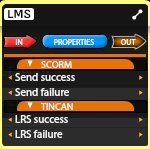
Figure 13: LMS Out options
ZebraZapps works well with your LMS and with TinCan.Basically, remember that ZebraZapps runs in the cloud. When you choose topublish your project, you can create an LMS zip file that you can download and thenupload to your LMS. The zip file contains everything the LMS needs to run thecourse, including the link to the SWF file in the ZebraZapps cloud. See Figure14.
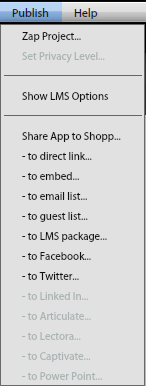
Figure 14: New Publish options
Sharing Zapps
Now you can share your Zebra projects with other designersor developers who have a ZebraZapps account. You only need to give their emailaddress and they will receive a copy of the project so that they can review itor even edit their copy. You can then coordinate with team members to edit andchange different parts of the project. For instance, one team member can be incharge of setting up a Glossary Event. Once ready, it can then be copied andpasted into the main project file.
You can also now publish to a guest list so that you caninvite specific individuals to view your published project.
So what else?
One of the big differences between Creator and Pro besideswhat’s noted above is that Pro has the ability to manage very large projectswith very fast saving, uploading, and execution performance. A lot ofengineering work has gone into these improvements, and it shows.
What’s on the horizon for ZebraZapps? There’s more to come.
- Both Pro and Creator will soon have a fulllibrary of image and template assets from eLearning Brothers. There will beother libraries made available as well.
- The player will allow for custom loaders andalso transparent backgrounds for easier inclusion of your projects within otherauthoring tools.
- Much more that can’t be revealed just yet.
Pricing and conclusion
Creator will continue to be licensed at $8.95 a month andPro will have a price of $39.95 a month. A free trial will be made available fora limited time only, so be sure to go to www.zebrazapps.com and sign up.
My take on this new version is rather positive. I love beingable to organize my content using the Event Flow and to be able to use templatesand Master pages. LMS connectivity is a must for my clients, but I was notexpecting to have ZebraZapps be ready for TinCan this soon, so that’s welcomenews. There is always room for more feature requests, and I have a few myself,but the addition of these new features truly takes ZebraZapps to the level ofthe professional, allowing me to use it now to create courses for clients andnot worry about tying-in to their learning management systems. Finally, beingable to share my projects and have team members work on different parts of aproject and then bring those parts together allows me to save a lot of time andeffort. Yes, sign me up! I’m ready!