





Technologycontinues to make our lives as training professionals both easier andmore challenging. While many of us have spent a lot of time over theyears learning how to best use software such as Flash and Captivateto simulate software applications for training purposes, the fact isthat even the best “simulations” are clearly just that. And giventhe lack of support for depth in current rapid simulation authoringsoftware, anything we can do to enhance realism while not increasingdesign and development time is a step forward.
In 2004, I wasresponsible for training a group of software technical specialists toinstall and configure a new software product my company wasintroducing to the market. I cringed at the prospect, having recently“sat through” a similarly tasked course that addressed theinstallation process at a high level, followed by a gruelingstep-by-step procedure list complete with static screenshots alongthe way. At the end of the course, the student was required to gothrough a “simulation” that followed the typical rapid scheme: acaption telling the student what to do, followed by the studentclicking the correct button or entering the right text, and then onto the next step.
For those of us whowere around back then, this was cool stuff and was (and,unfortunately, remains) the norm for these types of rapidsimulations. But the learning was superficial at best. If the studentclicked the wrong button or entered the wrong text, they simplyreceived another caption telling them what to click on. But thatisn’t how software works in the real world. Typically, we get toreally torture our misguided selves when we click on or enter thewrong thing. It’s just the first misstep in what is often multiplelevels of a “hole” that we must later back out, or cancel out,of.
No doubt, there areand have been simulation development products in the market that canincrease the depth of software training, but they are very expensive,come with a steep learning curve, and increase the course developmenttimeline. Because of this, they have not been adopted by mostorganizations.
It was around thattime that I first learned about software virtualization. Since then,my colleagues and I have been able to leverage virtualization toenhance the quality of our training offerings, both in thetraditional classroom environment and as part of synchronous andasynchronous e-Learning.
What is virtualization?
Wikipedia definesvirtualization as “the creation of a virtual (rather thanactual) version of something, such as an operating system, a server,a storage device, or network resources.” When introducingvirtualization to instructors, I simply refer to the typical use caseand context: “A machine within a machine,” or “acomputer running inside your computer, pre-configured by you.” Ithen show them a running virtual machine.
In order tounderstand how to work with virtualization you need to first know twoterms: host, and guest.
Host: the operatingsystem (or “machine”, if you prefer) on which thevirtualization software runs. This is your PC.
Guest: the virtualmachine itself. The guest will typically contain an installation ofan operating system such as Windows, along with any applications anddata needed for use by the learner.
For example, youmay have a RedHat Linux “guest” virtual machine (VM)running on a Windows 7 “host.” (See Figure 1.)
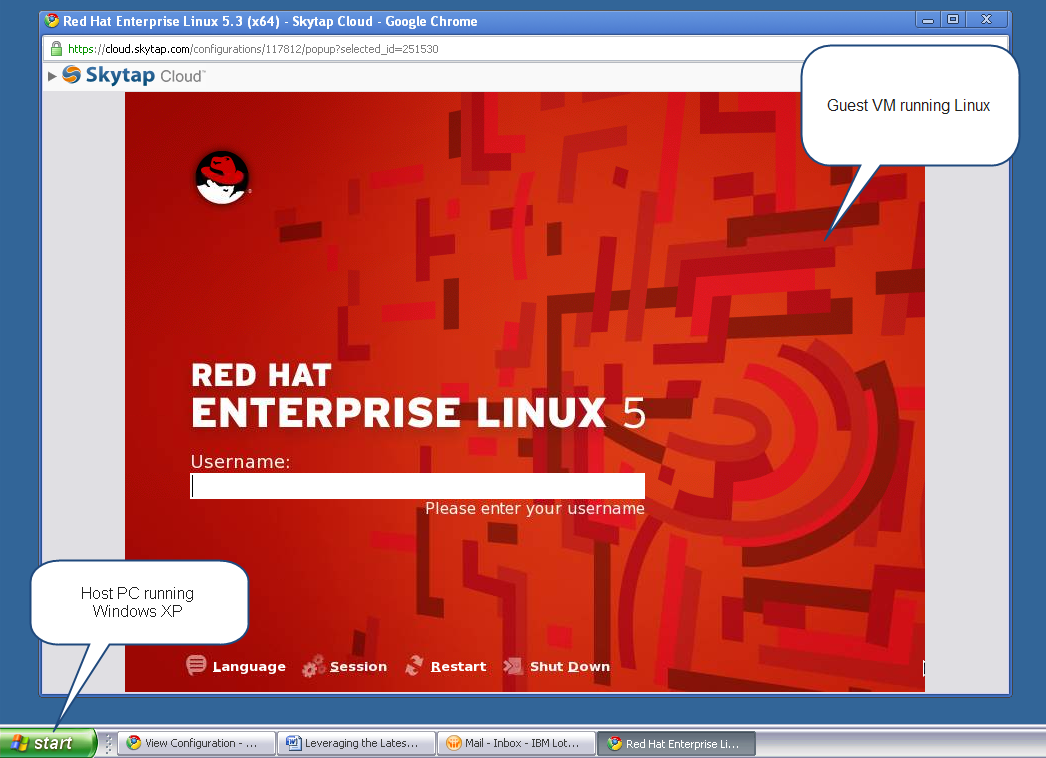
Figure 1. Screenshot of a virtual machine running in a browser window
Leveraging virtualization for training
There are two issues that I’lladdress here: costs, and deployment considerations (there may beothers, depending on your specific situation).
Costs
One of the greatthings about virtualization is that it can be very inexpensive toleverage, and in some cases it is even free. The only definite costsare in regards to licensing the software that you install anddistribute via your guest virtual machines. This is particularly trueif you are using Microsoft Windows and/or Office on the guestmachines. The virtualization software itself is no cost, with freeversions from VMware and the open-source VirtualBox being the mostcommonly used solutions to create and then run virtual machines.
Deploying your virtual machines to students
Once you have created your virtualmachine “template” and installed your operating system of choiceinto it, you can leverage it in a number of ways for trainingpurposes. In the past, we’ve done this in the following ways:
In a traditional software classroom, by pre-configuring a copy of the VM on each training PC in advance of the class
By distributing virtual machines to students ahead of a synchronous Web-based class, to be used during (and sometimes after) class
As part of an asynchronous Web-based training environment, to be used as an exploratory training “sandbox” or simply as a place to complete exercises, case methods, etc.
But be forewarned:the biggest hurdle is typically just getting the virtual machine,which is really just a set of files, to the students. This is becausesome of the VM files can be very large, usually gigabytes in size. You will specify the actual size when you create the VM. It can be aslarge (or small) as you wish, keeping in mind the space needed forthe operating system and additional applications and files you wishto put on the VM.
There are a numberof ways to get the VM files deployed to your target hosts. Theseinclude:
Burn to DVD
Save to USB “key”
Download via FTP
From there, you, orthe student, will need to install a virtual machine “player”application, and then copy the VM files onto the intended PC. BothVMware and VirtualBox applications are available, and run equallywell on Mac and Linux. You can even run Windows as a virtual machineguest within a Linux-based host, for example, and vice-versa.
Make no mistakeabout it – getting your virtual machine files to your studentmachines is a real hassle because of the file sizes involved, and itoften requires IT support, particularly if your students do not havethe proper permissions on their PC to install the virtual machineplayer software. Third-party vendors have noticed this problem andhave begun offering cloud-based virtualization solutions. Vendorssuch as Skytap (www.skytap.com)offer a virtualization solution that is completely Web-based both fortrainers/administrators, and for the students who will access thevirtual machines through their Web browser. (See Figure 2.) This wayof deploying virtual machines is often the best approach –virtualization without the IT overhead, but it comes in exchange forlicensing/maintenance costs of the cloud-based service. That said,we’ve found that for e-Learning, both synchronous and asynchronous,cloud-based virtualization is worth the cost.
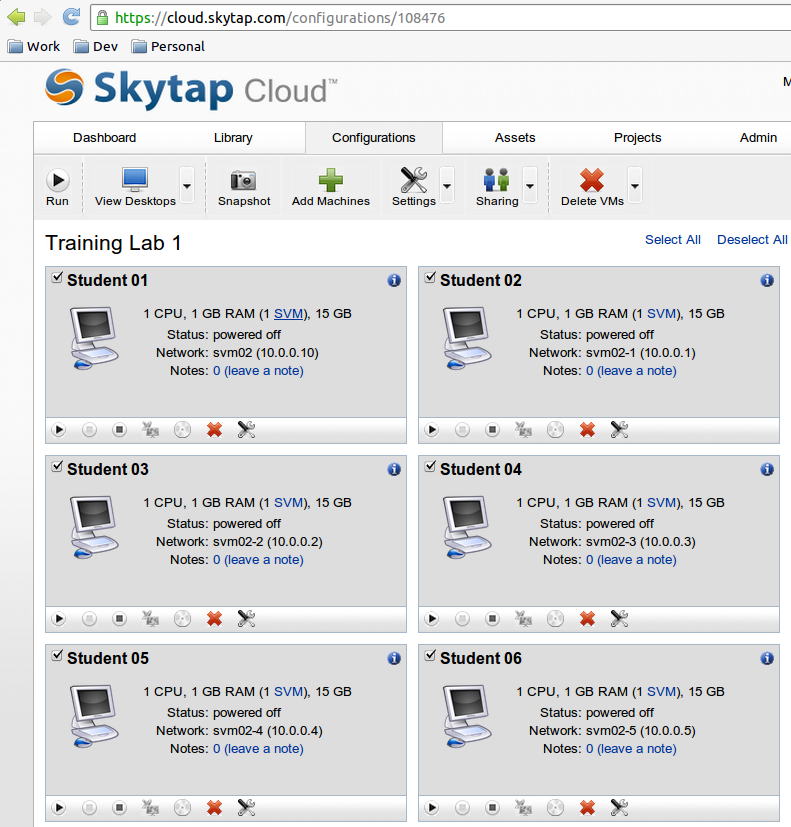
Figure 2. Screenshot of cloud-based Skytap virtual training lab
Although I haveused more flexible server-based virtualization solutions fordeploying virtual machines, these new cloud-based services are idealbecause non-technical users can administer them. And, if usedproperly, the learner need simply navigate to their provided VM’s URLto begin using it.
Returning to Figure2, this is the administrative view of a typical virtual training lab.Notice that the training lab administrator can run, shut down,suspend, add, remove, and deploy machines as needed for each student.You also have the ability to set permissions and access by user. Youcan create large virtual labs and make them available to studentswithin minutes.
Use cases for e-Learning
There are four use cases that Ibelieve will be pretty common: synchronous training, asynchronoustraining, testing, and the sandbox.
Synchronous
During our typicalsynchronous e-Learning courses, we leverage cloud-basedvirtualization along with our synchronous learning tool, AdobeConnect. We design our courses in a way that allows learners toleverage the Adobe Connect environment for instruction(demonstrations, slides, polling, etc.), along with designedactivities in which they switch browser tabs, go to their assignedvirtual machine, and complete a set of tasks as directed. Whilelearners are working in their virtual machines, the instructor canview their machine by simply clicking on a thumbnail in theirinstructor-view. So if a learner has a question or gets stuck, theinstructor can take over the learner’s virtual machine anddemonstrate as necessary. Once the activity is complete, the classreconvenes in the Adobe Connect environment to recap the activity.With thoughtful consideration and facilitation, we have found thatthis environment works very well and is much more effective than thetypical “slides followed by demonstration” method.
Asynchronous
For asynchronouslearning we leverage virtual machines as “sandboxes” – safetraining environments for learners to use. (See Sandbox below .)
Online testing
We also leveragevirtualization for online testing. We conduct certification“Performance Exams,” by preparing a virtual machine with thenecessary applications on which the student is trying to certify. Thestudent logs in at a specified time and completes a set of assignedtasks. The virtual machine is available for a limited time, and oncethat time is up the instructor accesses the machine and “grades”the learner’s performance by checking what configurations/tasks wereperformed successfully in the virtual machine. The Performance Examtests and certifies the application of the knowledge and skillsgained during the certification curriculum that learners mustcomplete prior to taking the exam.
Sandbox
In addition, wemake available training “sandbox” environments to students asneeded. This can be very useful, and our students much appreciate it,as we can make available software applications, pre-configured asneeded, for them to use in a “safe” training environment, bothfor independent exploration as well as to perform learningassignments.
In closing
My intent in thisarticle was not to be procedural, but simply to spread the word ofthe maturity of virtualization technology, and how you can leverageit across traditional classroom, blended, and Web-based learning. Asmany know, just being aware that a technology like this is availableis the biggest step.
If you think youcan leverage virtualization for your learners’ benefit, I recommendthat you download a copy of the latest Vmware Player or VirtualBoxapplications and give it a try. You just may find that virtualizationis a valuable tool to add to your learning toolkit!