
When creating eLearning, it’s crucial that you include an eLearningreview step before you post a new or revised offering for general use. Youshould choose your reviewers carefully, and include one or more of these keyindividuals:
- The subjectmatter expert should be ensuring that every aspect of the content isaccurate
- The eagle-eyedcopy editor is excellent at noting typos, misspellings, and grammar andsyntax problems
- The functionalityexpert will patiently check every interaction and navigation option
Other reviewers you may want to include might be the projectmanager, those funding the project, and anyone else who could prove beneficialin catching problems earlier rather than after the project is finished.
The three market-leading tools—Adobe Captivate, ArticulateStoryline, and Trivantis Lectora—all include an ability to send your eLearningout for review and receive comments back from reviewers so that you can act onthem, either internally or through the use of a separate tool they offer. Many otherauthoring tools also include this ability.
Review My eLearning
The review tools that authoring tools offer, or that their vendors offer, can be very useful; or you mayfind them lacking in some ways. If the latter, consider Review My eLearning, a robust review option that includes many features.
You can choose to upload your SCORM-enabled course zip fileor link to your course. There is no size limit on the upload.
Next, you input the email addresses of the developers, andalso the email addresses of all the reviewers you would like. You can include amessage to them if you wish.
Along the way, there are helpful demos that illustrate allof the available options. Some of those options include:
- Adding labels to your course to allow someonesearching through courses to find it.
- Allowing reviewers to see one another’s comments.
- Letting reviewers access the course withoutlogging in or forcing them to log in.
- Creating a new review cycle for an existingcourse. All comments are preserved for each review cycle you establish.
- Setting an expiration date for each review cycle.
You can white-label the review so that it uses your logo andorganization information, making it appear seamless with your course. The emailsent to reviewers will also include this information.
Reviewers, developers, uploaders, and account owners eachhave a set of privileges, which you can see here.
Entering review comments
Reviewers will receive an invitation to review thecourse, and they are offered a helpful short tour if they wish to learn alltheir options. Once they start the review, they see a split screen: the courseon one side and the comment area on the other. They can choose to see the twoparts side by side (Figure 1) or with the course on top and the comments below (Figure2). You can adjust the dividing line at will.
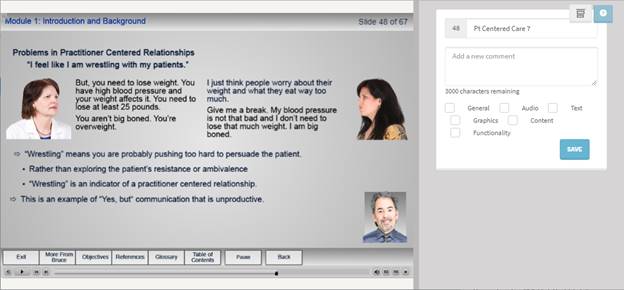
Figure 1:Side-by-side review option

Figure 2: Top-and-bottom review option
In most cases, Review My eLearning is smart enough to loadthe slide number and title, as you can see in the figures above (48: Pt Centered Care 7). Each commentcan be up to 3,000 characters.
You can indicate the type of error found by clicking one or morecheckboxes, as you can see in Figure 3.

Figure 3:Review classification options
Reviewers can exit at any time and indicate that they havefinished their review or that they intend to finish later.
Viewing the review comments
You can review course comments and act on them in thesame way that reviewers do, moving from one slide to another. See Figure 4.
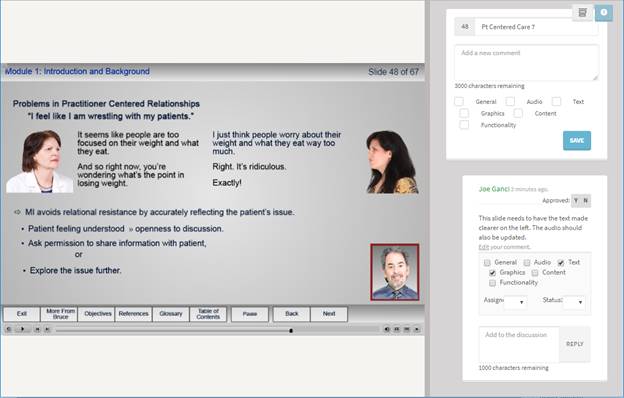
Figure 4: Actingon review comments
The actions, shown magnified in Figure 5, include:
- Responding to a review comment using up to 1,000characters
- Approving the comment or not
- Assigning the comment to be acted upon to aspecific developer
- Setting the status to Pending, Declined, or Complete
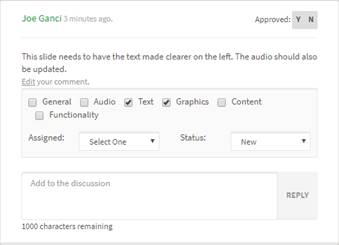
Figure 5: Acting on comments
You can also choose to see all comments at once and act onthem accordingly. See Figure 6.
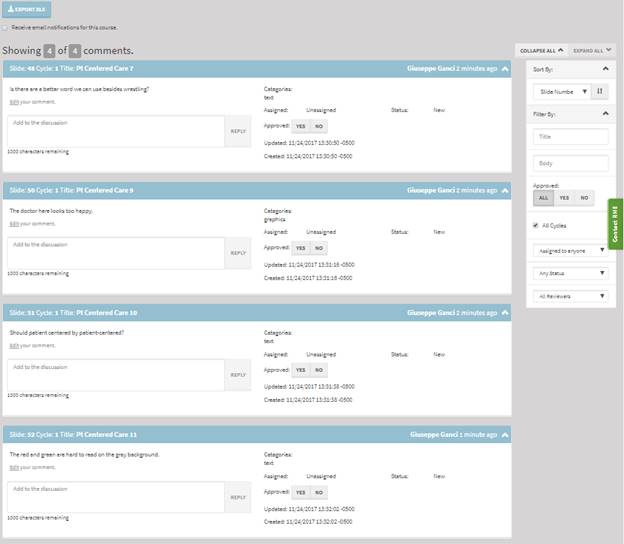
Figure 6:Seeing and acting on all the comments
You can also export the comments as an XLS file, acomma-delimited file that can be imported into Excel, a database, and otherapplications.
Notice the filtering options above on the right, magnifiedin Figure 7.
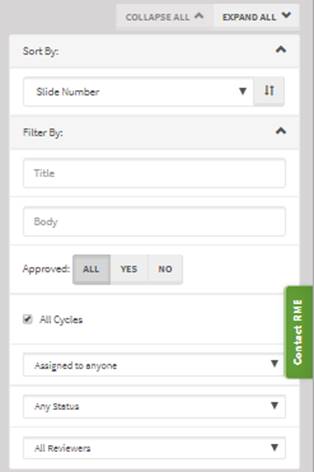
Figure 7:Options to filter the All Comments list
These options include seeing comments:
- That are assigned to everyone or to specificdevelopers
- That are new, pending, declined, or complete
- By everyone or by specific reviewers
- By slide number, slide title, status, datecreated, and more
- By the title or any word in the body of acomment
- By the label assigned to a course
Compatibility
You can use Review My eLearning with courses created in mostauthoring tools, but it works best and is able to extract the most informationfrom the course if it was created in one of the following tools:
- Articulate
- Presenter ’09
- Presenter ’13
- Storyline 1
- Storyline 2
- Storyline 360
- Presenter 360
- Adobe
- Captivate 7
- Captivate 8
- Captivate 9
- Captivate 2017
- Presenter
- Lectora
- iSpring
- Udutu
- SCORM Driver
Pricing
There are a few different plans available, depending onyour level of need.
- Small(Budget): Upload one course, $15/month or $150/year—only you can upload
- Medium(Flexible): Upload five courses, $29/month or $290/year—only you can upload
- Large(Team): Upload 20 courses, $59/month or $590/year—you and three others canupload
- Unlimited(Enterprise): upload unlimited courses, $99/month or $990/year—you and fiveothers can upload
Final thoughts
Having tried Review My eLearning with a coupleof my clients so far, I have received very good feedback that the site hasproven easy to use and has all the features they were seeking. I’m pretty surethat I’ll be using this option with more and more of my clients. Checkit out and see if you agree!