
I have worked with many learning management systems overthe years. Almost every one of them served its purpose of allowing for learnerregistrations, for the setting up of courses, for communication between itselfand lessons created in an authoring tool, and for administrators to track theprogress of learners, both individual and in the aggregate. However, I’ve hadmy share of headaches when working with them. In fact, most organizations thathave acquired an LMS tend to have complaints about them: They’re too complicated,they don’t do enough or do way too much, they don’t seem to work correctly withauthored lessons, they don’t offer a variety of reports, and so on.
In the eLearning market, Adobe is most famous for its productsCaptivate and Presenter. I heard someone from Adobe say in a Q&A once thatthe reason they had decided to create an LMS, called Captivate Prime, wasbecause they heard too many stories from Captivate users about the difficultythey were having with LMSs (so I wasn’t alone!). The company began researchingfirst what organizations liked, and then what they didn’t like, about theirLMSs. Then Adobe set out to create a new LMS that it hoped organizations wouldfind easy to use and yet powerful too. When I came across an article thatranked Captivate Prime at number one, I knew I had to see for myself whatCaptivate Prime had to offer. My summation? You really need to look atCaptivate Prime if you’re looking for an LMS!
What’s in a name?
First things first: I think the name can be confusing.It isn’t an LMS just for Adobe Captivate projects. It works with any lesson builtin any authoring tool that outputs to AICC, SCORM 1.2, SCORM 2004, or xAPI.However, you can also upload PDF and PowerPoint files, and videos, too. Forpurposes of brevity, I’ll abbreviate the name to Prime for the rest of myreview.
Setting up
Adobe claims that you can install Prime and startsetting up courses in 90 minutes, and my own experience shows this to be true.
The different Administrator functions are laid out asseen in Figure 1.
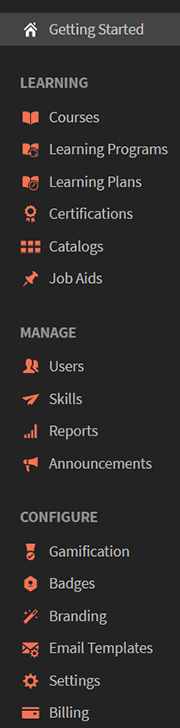
Figure 1: Administrator functions
The Manage functions
In the middle of Figure 1, notice the Manage section.Let’s first discuss this section, which contains Users (Figure 2), Skills,Reports, and Announcements.
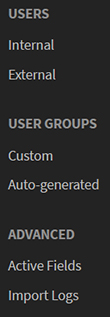
Figure 2: User admin options
- Users—Newusers can be added in a number of ways. You can enter users individually,import them in bulk, and or allow users to self-register. There are two maingroups of users: internal and external.
- Internal users—Youcan add internal learners a few different ways. You’ll probably want to use theBulk Import option. This allows you to use a standard CSV (comma-separatedvalues or delimited) file that you generate from your organization’s humanresources system. This is fast and easy. Besides expected fields such as namesand email addresses, you can also import fields specific to your organizationto include in the reports that Prime will generate. You can even have Primeautomatically create groups for you from information in the CSV file, such asjob categories, departments, and other factors. You can also set up other groupsand even tenant-sharing.
- External users—Externallearners are those who are not part of your organization. From within Prime,you create a group name for an external organization or category and generate alink and QR code to send to its external users. You can brand the group aswell, a nice way of differentiating each group. The users who follow the linkthen create their own login name and password.
When you create enrollment groups, you assign to that group the courses theycan see. You will need to specify a manager for each group of external users. - User roles—Usersare automatically set to be a Learner.See https://bit.ly/PrimeLearner. If you wish, you can also set users to be:
- Administrator—Hasaccess to everything in the account. See https://bit.ly/PrimeAdmin.
- Integration admin—An administrator who integrates Prime with third-party applications,such as Salesforce. An integration admin can also develop applications usingPrime APIs. See https://bit.ly/PrimeIntAdmin.
- Manager—Cangenerate and view learner reports, approve new content, and provide feedback.See https://bit.ly/PrimeManager.
- Author—Cancreate modules, courses, and learning programs, combine modules to make customcourses, and more. See https://bit.ly/PrimeAuthors.
- Instructor—Usedfor classroom modules, instructors manage the time and place when classroominstruction is offered and set a seat limit. They can mark attendance andprovide quiz scores, completion status, and feedback to their learners. See https://bit.ly/PrimeInstructor.
- Skills—Thisis where you define those talents, knowledge, and abilities that you would likeyour learners to achieve. You normally base these on your organization’s goals,and you can assign to each skill a name, description, level number, number ofcredits, and badge. You can also create your own.
- Reports—Choosefrom sample reports or create your own. I found these to be really hassle-free.Prime tracks everything thrown at it—completion data, time spent, etc.—and thenallows you to create reports from any and all data collected. You can createyour own custom reports or base them on the following:
- Enrolledand completed courses
- Courseeffectiveness
- Enrolledand completed learning programs
- Learning timespent per course
- Learning timespent per quarter
- Assigned and achievedskills
Setup your X and Y axes and the time span, and you’re ready to go.
- Announcements—Create a message using text, images, or video, andsend it to a set of users. These are best used when you tie them to learningobjects and also to specify groups you’ve defined.
The Learning functions
Next, let’s explore the Learningsection (Figure 3).
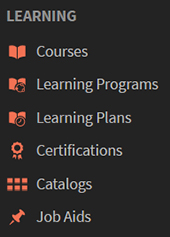
Figure 3: Learning options
Learning is divided into theseareas:
- Courses—Combineany modules you have uploaded to create a course.
- Learning programs—Combine courses that share a theme to create a learningprogram.
- Learning plans—Lets you set up events that are based on one of theseoccurrences:
- Anew user is added,
- Auser gets added to a group,
- Auser completes a learning object,
- Auser achieves a skill level,
- Orsimply a date.
- Certifications—Createuser certifications based on whether:
- Learnersmust take courses in a certain order or can take them in any order.
- Whether thecertification is perpetual (meaningonce the learner receives the certification, it’s good for life) or recurring (where learners must provetheir skills every number of months that you indicate).
- You also canassign a badge and/or a cover image for each certification and set up learnerreminders.
- Catalogs—Acollection of courses, learning programs, and certifications.
- Job aids—Anyfile you upload and any link you provide that can assist the learner. You nameeach job aid, and you can set each to sharedor private. You also can assignskills and levels to each job aid.
The Configure functions
The lastset of options among the Administrator functions that you saw at the beginningof this review, the Configure options (Figure 4) cover a few areas.
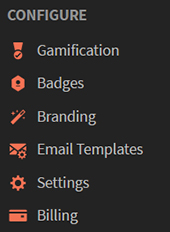
Figure 4: Configureoptions
- Gamification—Motivate your learners by setting up levels (Bronze, Silver,Gold, and Platinum) and rules for achieving each level—for instance, by pointsaccumulated. You also set up tasks for learners to achieve, such as “fastlearner,” “self-driven,” etc. See Figure 5.

Figure5: Gamification
- Badges—InFigure 6, notice that you can change any built-in badges and also add newbadges by providing a name and an image for each. You can make them reflectyour organization’s logo or other images.
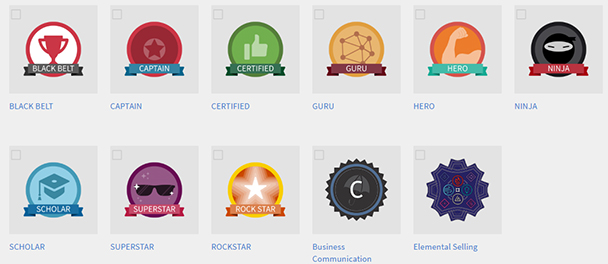
Figure 6: Badge selections
- Branding—Supplyyour organization’s name and subdomain. You can also choose to upload your logo,or have Prime use your organization’s name, stylized, or use both. Finally,choose a theme to use by default. You can always change the theme used in anycourse.
- Email templates—Thereare many nicely designed email templates from which to choose, each of whichyou can customize. There are 12 general templates, 24 learning activitytemplates, and 24 reminder and update templates. Each can be enabled ordisabled. If enabled, each can be automatically sent upon reaching a specificpoint, such as when a course is opened for enrollment.
- Settings—Youcan make many different changes andadditions here. For instance, you can create surveys to obtain learnerfeedback. See Figure 7.

Figure 7: Settings menu
- Billing—Hereyou set up your payments for Prime.
More important Prime features
- Mobile access—Learnerscan download the free Captivate Prime app to take courses on their mobiledevices.
- Offline access—Youcan let learners download lessons to take when they are not online. Once theygo back online, their progress will be automatically uploaded.
- Fluidic Player—Whenstudents launch courses, Prime’s Fluidic Player lets them very nicely experienceall kinds of content, such as PDFs, videos, PowerPoints, and courses you’vecreated in Adobe Captivate or similar products on different devices.
- Clean, modern user interface—I was rather taken with Prime’s user interface. It iseasy to navigate, looks clean with a nice balance of options and white space,and feels modern.
- Direct publish from Captivate interface—Captivate lets you publish to Prime with a singleclick.
- Adaptive video streaming—Prime is able to convert video embedded in Captivateinto formats optimized for HTML5 and mobile devices.
- Microlearning—Theability to combine the different resources and modules that you upload meansit’s easy to combine them into short courses, learning programs, or certifications.
Pricing
Adobe has made the price for Captivate Prime veryattractive. It is based on the number of users you have. For each user who needsaccess, the cost to you is $4 per month. There is a requirement that you haveat least 10 users, which means the least you’ll pay is $40 per month. If youhave over 500 users, Adobe will give you a discounted per-user price. Thisseems to me to be quite reasonable.
You also can sign up for a free 30-day trial to testout Prime and determine for yourself whether it’s right for you.
Final thoughts
There are hundreds of learning management systems onthe market, and they vary widely in price and features. Having worked withseveral, I found Prime to be easy to understand and use, complete in itsfeature set, and very nicely priced. I’m not surprised it has been chosen asthe number-one LMS on the market by others, and if I were in the market for anLMS, I would certainly want to look at Prime as a top candidate.